
Spaces that stay tidy: how Maho's sidebar handles tab chaos better than Arc
When Arc showed up with vertical tabs and Spaces, it felt like someone had opened a window in a stuffy room. The old horizontal tab strip, designed when web pages were simple documents, had broken under the weight of modern web applications. Arc proved that we needed separate rooms for our digital lives. Work stayed in one room, personal research in another, side projects in a third.
Many of us spent years using that setup daily. Over time, though, a quiet tension began to appear in the workflow. The very mechanism Arc built to keep sidebars tidy, automatic tab archiving, started fighting against daily continuity. You leave a difficult problem on Tuesday evening, come back Wednesday morning, and find your tabs swept into an archive bin.
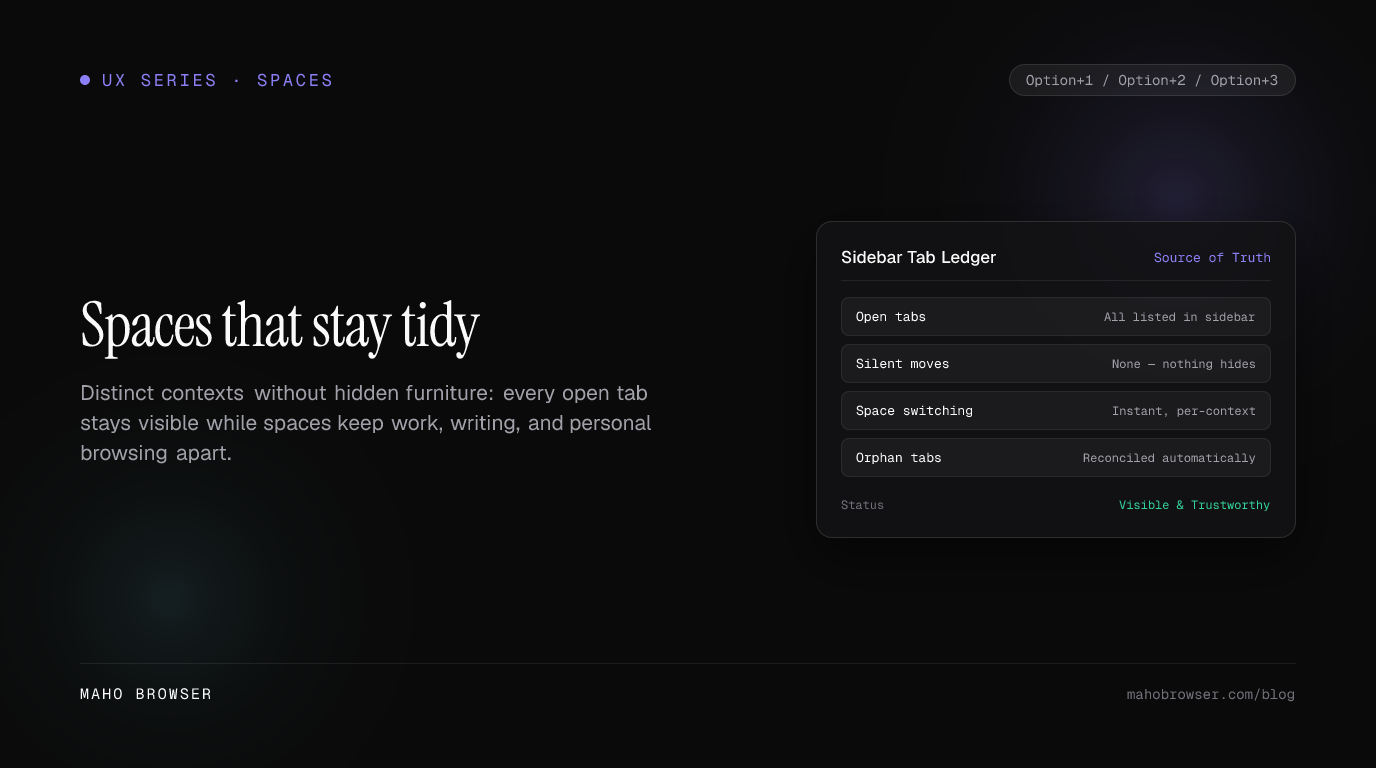
Maho takes what Arc got right about spatial separation and pairs it with a different core philosophy: visible is trustworthy. Your browser should organize your workspace without throwing away your active context behind your back.
What Arc got right about context
Section titled “What Arc got right about context”We should give credit where it belongs. Arc fundamentally improved how people think about browser organization. Before Arc, managing eighty open tabs meant squinting at tiny favicons along the top of your screen or creating dozens of detached windows across virtual desktops.
Arc introduced two major ideas that genuinely moved the industry forward. First, Spaces gave users distinct, named environments with their own color themes and tab lists. Switching between Work and Personal felt like stepping into a different office. It reduced mental context switching and helped people focus on one role at a time.
Second, the vertical sidebar recognized modern screen geometry. Displays are wide, yet web content is tall and narrow. Moving navigation to the left margin freed up vertical reading room while letting tab titles remain fully legible.
To solve the hoarding problem that plagues vertical sidebars, Arc introduced auto-archive. The concept sounded clean on paper: if you haven’t touched a tab in twelve or twenty-four hours, the browser archives it automatically. It felt like an ideal self-cleaning desk.
Where archiving betrays you: the tab you swore was open
Section titled “Where archiving betrays you: the tab you swore was open”In practice, automatic archiving creates a subtle tax on your working memory. The problem with an automated broom is that time elapsed does not equal lack of importance.
Consider an ordinary scenario. You are debugging a billing webhook on Tuesday afternoon, with payment docs, a pull request review, a staging dashboard, and three issue tickets open. After wrapping up for the night and attending morning meetings on Wednesday, you return to your code at noon.
Looking at your sidebar, the tabs are gone.
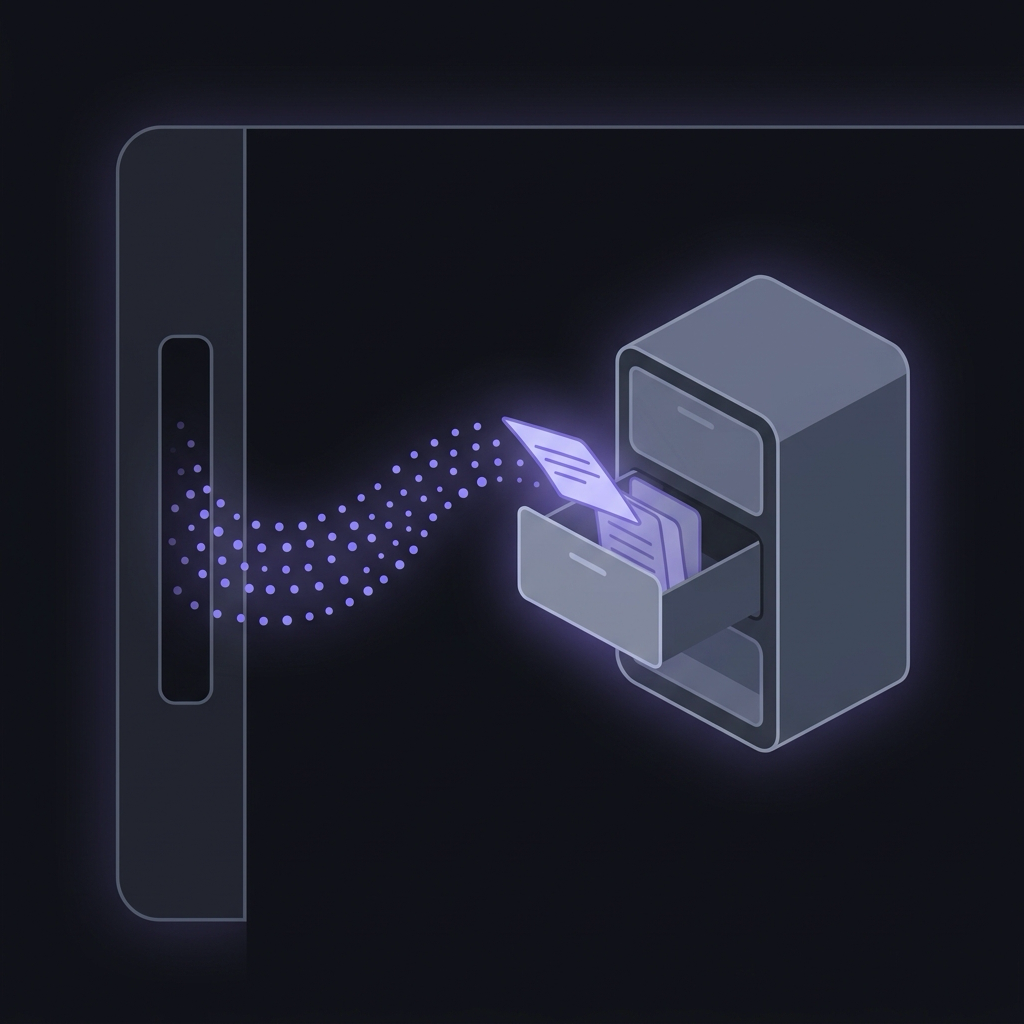
You know you didn’t close them or press Command+W. The browser decided on your behalf that twenty hours of inactivity meant you were finished. Now you must break focus, open the archive view, type search queries, and pull each page back into your active list.
This friction breeds an unintended habit. To protect important tabs from being swept away, you start pinning them. Within three months, the pinned section expands into a massive, static list that you hesitate to touch. It becomes the exact junk drawer the browser promised to eliminate.
When software silently moves state, trust erodes. You find yourself second-guessing whether you actually opened a reference page or if your browser hid it in an archive folder while you were eating lunch.
Maho’s rule: visible is trustworthy
Section titled “Maho’s rule: visible is trustworthy”Maho approaches tab management with a strict guarantee: if a tab is open in the engine, it appears in the sidebar.
Under the hood, Maho’s native Views UI treats the Chromium TabStripModel as the single source of truth. There are no hidden secondary states, no ghost sessions running unrendered in the background, and no timers moving tabs into hidden archives. What exists in memory is what you see on your screen.
This rule changes the psychological contract between you and your browser. You never have to wonder if a page disappeared or if an unpinned tab was silently discarded. Every unpinned tab stays right where you opened it until you explicitly decide to close it.
+-------------------------------------------------------------+| Maho Tab Lifecycle Model |+-------------------------------------------------------------+| Active State --> Directly rendered in sidebar UI || TabStripModel --> Strict 1:1 mapping with open tabs || Memory Pressure --> Engine discards RAM, keeps tab visible|| Close Action --> User-initiated only (Cmd+W or click) |+-------------------------------------------------------------+When system memory runs low, Maho lets Chromium discard the background tab’s rendering process while preserving the tab entry in your sidebar. The tab stays right in front of your eyes, ready to reload instantly when clicked. You get resource efficiency without losing your spatial layout.
Reconciliation is predictable. If an external application opens a link in Maho, or if you launch a page from the command palette, the new tab registers immediately in the active Space. Nothing is obscured beneath foldout drawers or hidden trays.
Spaces without burial
Section titled “Spaces without burial”Spaces in Maho give you complete context isolation without the risk of tab burial. You can organize your day into Work, Writing, Research, or personal browsing, with instant switching and clear boundaries.
Switching between Spaces is bound to global keyboard shortcuts. Pressing Option+1, Option+2, or Option+3 snaps you between contexts immediately. There are no sluggish transitions, floating popovers, or delayed animations. The switch feels as fast as changing a buffer in a code editor.
Option+1: Work [ 4 active tabs ] --> Engineering dashboards, Jira, GitHub PRsOption+2: Writing [ 2 active tabs ] --> Docs drafts, markdown preview, notesOption+3: Personal [ 3 active tabs ] --> News feeds, travel plans, message boardsEvery Space maintains its own isolated list of open tabs. When you switch to your Writing Space, your Work tabs step out of view so you can concentrate on your prose. Heading back to Work with Option+1 brings back every single tab in the exact order and position you left it.
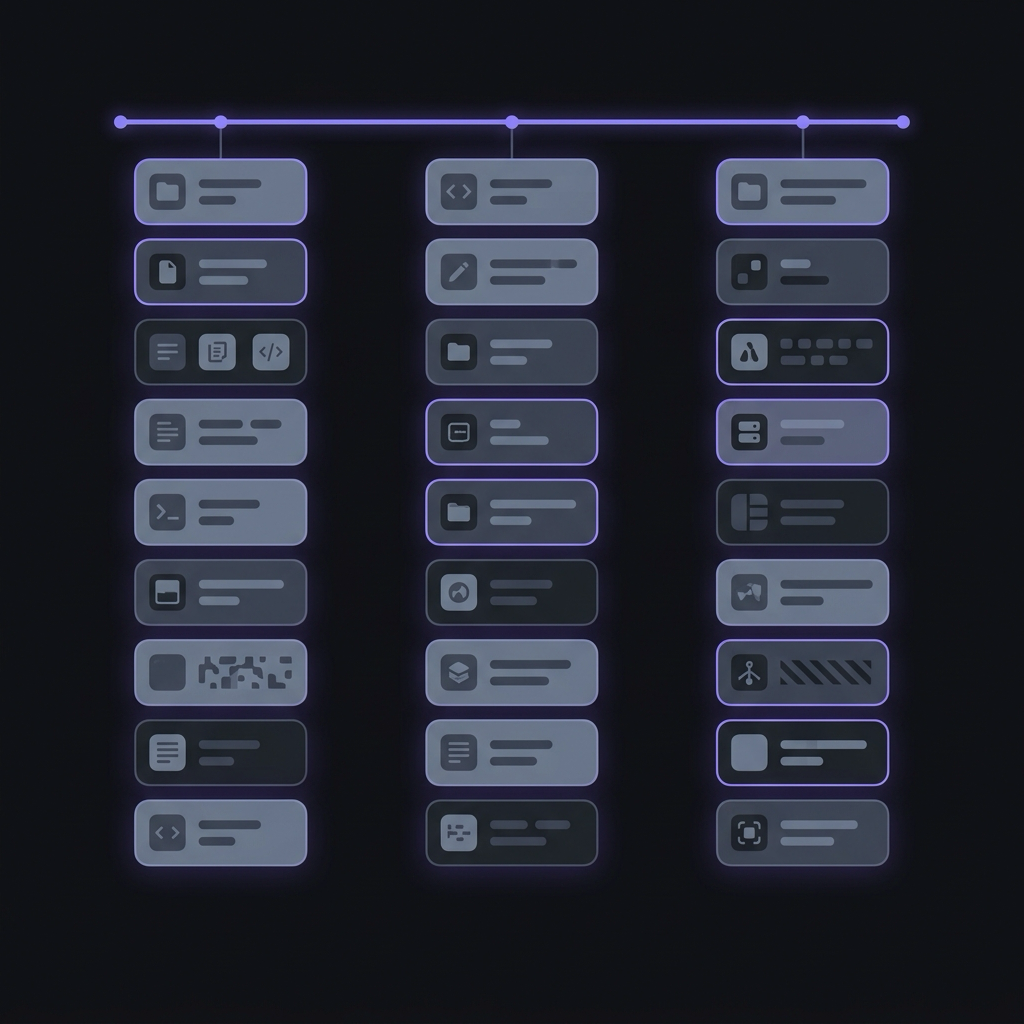
Tabs never migrate across Spaces on their own. Maho avoids guessing whether an incoming URL belongs in Work or Personal based on machine-learning heuristics. Opening a link inside your Work Space keeps it there. Moving a tab to another Space requires an explicit drag or right-click action, leaving you in complete control of your boundaries.
Because every open tab remains visible within its respective Space, a quick glance at your sidebar tells you your entire working set. Cleanliness comes from clear context separation, not from sweeping active work under the rug.
Peek before you commit
Section titled “Peek before you commit”A primary reason browser sidebars become cluttered is link exploration. While reading an article or reviewing code, you notice links to external references. You click them, wanting only to check a definition, skim an error log, or verify a commit hash.
Traditional browsers spawn new permanent tabs for every click. Soon enough, your sidebar fills with one-off pages you only needed for fifteen seconds.
Maho solves this upstream with Peek overlay previews. When you want to inspect a link without committing it to your sidebar, Peek renders the target page inside a lightweight overlay frame directly above your current content.
- Read the reference or check the status without leaving your current page.
- Press Escape to dismiss the preview instantly, leaving your sidebar untouched.
- Hit Command+T or click the promote icon if you decide to keep the page as a permanent tab in your active Space.
Peek also handles external authentication flows and transient JavaScript popups. Instead of spawning detached mini-windows that scatter across your desktop, Maho routes authentication dialogs into focused foreground overlays that resolve cleanly and vanish when done.
Filtering out ephemeral browsing before it touches your sidebar keeps your active Spaces lean naturally. You avoid needing an automated archive bot because you stop hoarding disposable links in the first place.
Switching costs, honestly
Section titled “Switching costs, honestly”Migrating your primary browser always comes with real friction. Muscle memory is stubborn, and anyone claiming that switching browsers is effortless is trying to sell you something.
People who have used Arc for years have fingers that expect specific shortcuts and visual cues. Here is what the transition looks like in daily practice.
Your muscle memory for vertical layouts will transfer immediately. If you already prefer vertical tabs on the left over horizontal tabs along the top, Maho feels natural within minutes. The spatial economy of wide displays remains identical.
Next, you will need to adjust to active tab hygiene. Arc treated unpinned tabs as self-expiring scratchpads because the browser swept them away overnight. In Maho, unpinned tabs stay until you close them. When you finish a research session with twenty open tabs, you close them with Command+W rather than waiting for an automated timer to clean up.
Finally, migrating your bookmarks and pinned structures is straightforward. Maho imports standard Chromium bookmarks and folder structures cleanly. Setting up your primary Spaces takes two minutes: assign names, set hotkeys, and place pinned tools at the top.
The payoff for making the switch is predictability. You get the spatial organization of Spaces, the clarity of vertical navigation, and the confidence that your workspace will look identical tomorrow morning.
No buried tabs, no hunting through archive logs, and no hidden surprises. Just a tidy, reliable room for your work.