
Share a tab to the terminal (and back) with Maho
A browser tab is a document. The address bar tells you where the document came from. The page renders one view of it. The DOM holds another. The selection is a third. None of that is reachable from your shell, in any browser, without a custom extension you write yourself.
That is fine for normal browsing. It is not fine when you want to count words in an article, run pandoc on a draft, jq a JSON page, or stuff a snippet into a notebook. The friction is small, but you do it five times a day, and small times five is the whole afternoon.
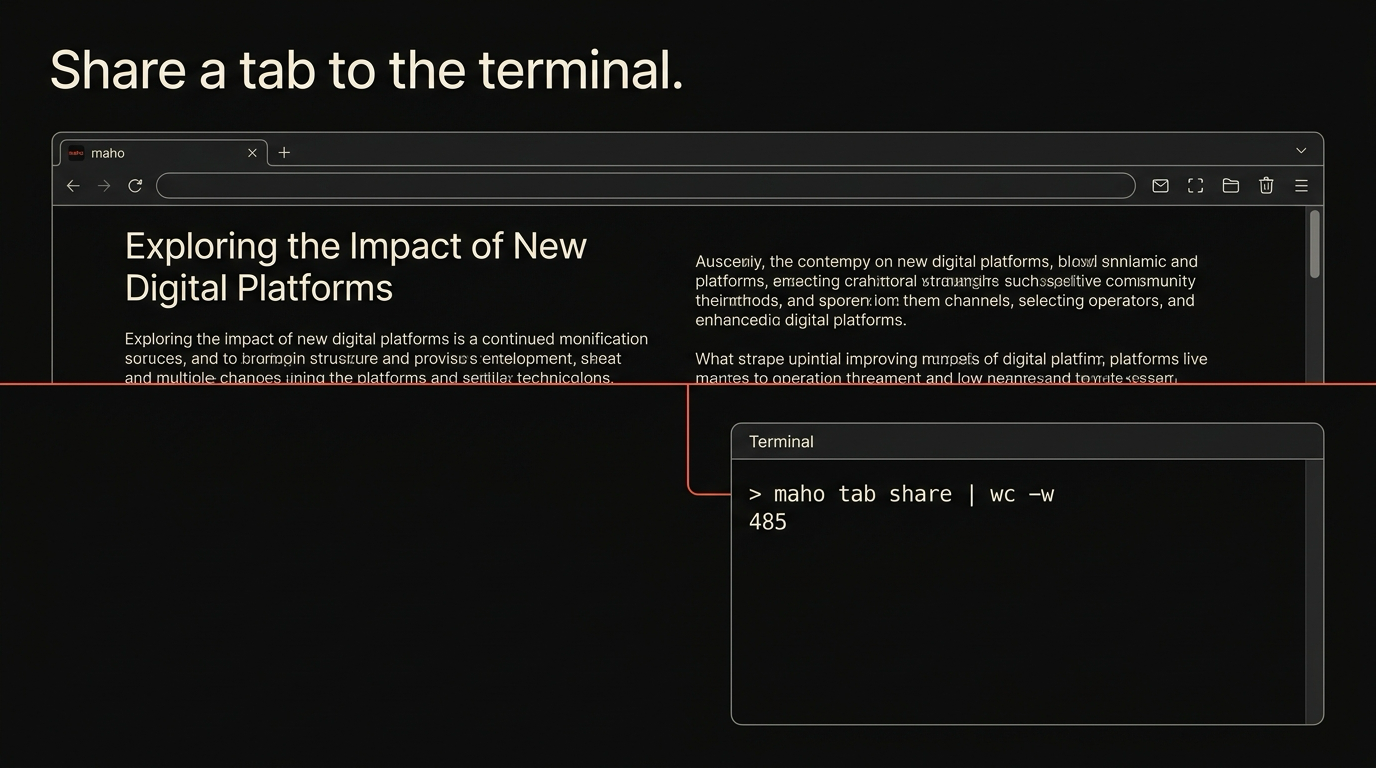
Maho exposes the current tab as something you can pipe to and from. This post is the working tutorial. By the end you will have read a tab into wc, transformed one with pandoc, and round-tripped a result back into the page as an annotation.
The unix-tab idea
Section titled “The unix-tab idea”The phrase that stuck during design reviews was “the tab as a unix object”. It is not a deep idea. It is the observation that a tab has stable handles (a URL, a title, a selection, a document) and stable operations (read, write, annotate). If those handles and operations are reachable from a shell, you get the unix composition rules for free.
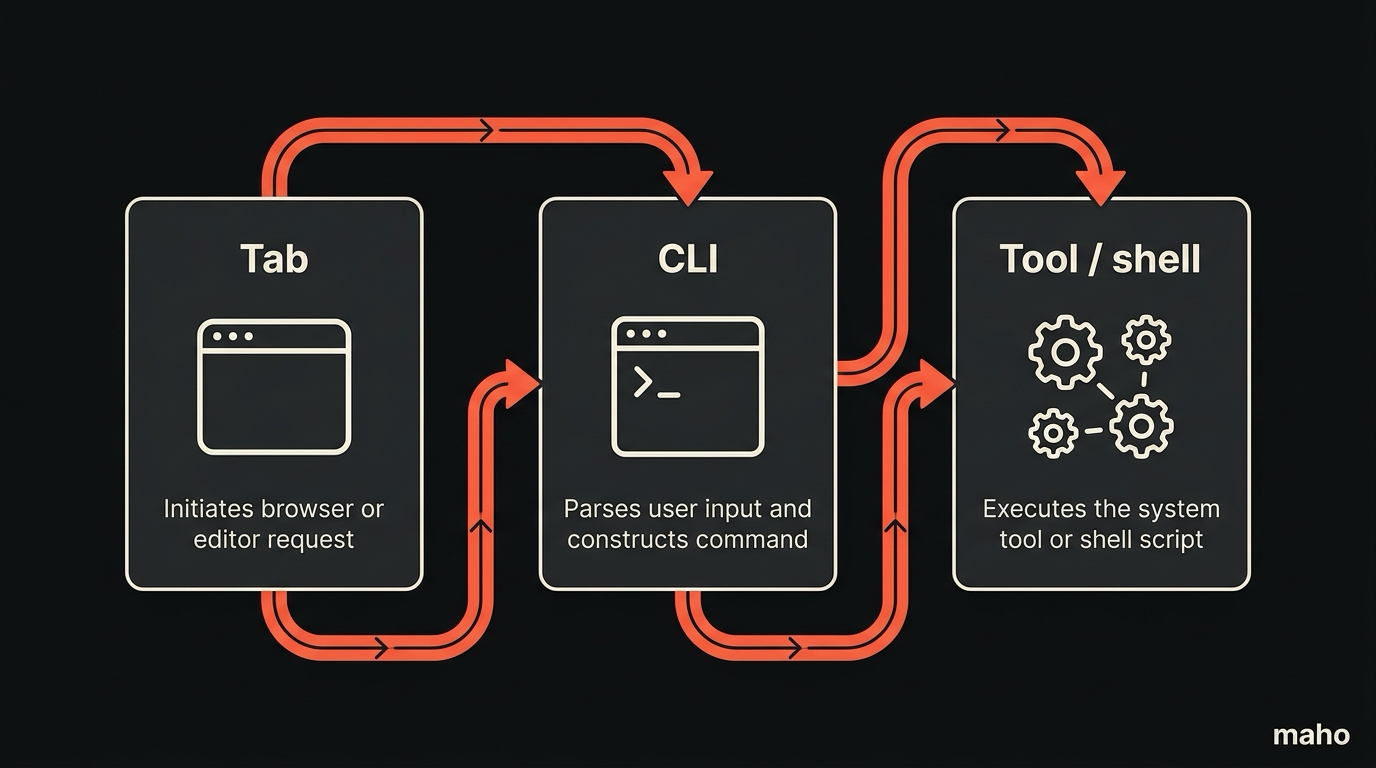
What that means in practice. The tab has stdout: its content, in a few useful representations. The tab has stdin: a way to write back, either as a content overlay or as an annotation. Between the two, a shell pipeline can do anything a small extension would do, with no install step and no permissions dialog.
The point is not to replace extensions. The point is that the smallest, most one-off automations should not need an extension at all.
The two integration paths
Section titled “The two integration paths”There are two ways into the tab from outside. Pick the one that matches the surface you are working in.
The CLI helper. A binary called maho that ships with the browser preview. It speaks to the running browser over a local socket and exposes the tab operations as subcommands. This is what your shell scripts call. The full reference lives in the CLI docs.
The MCP tool. Maho also exposes the same surface as MCP tools so an agent can drive it. We covered the broader pattern in MCP server for your browser. The CLI and the MCP tool call the same internal API. If you can do it in one, you can do it in the other.
The rest of this post uses the CLI because the syntax is shorter and easier to read in a tutorial. Translating to MCP tool calls is mechanical.
Step 1: enable the CLI helper
Section titled “Step 1: enable the CLI helper”The helper is off by default. You opt in once.
Open the command palette. Run “Enable terminal access”. Pick whether to allow access from any local shell or only from a shell tagged by you (the second option requires you to set an environment variable in your shell init). Pick the operations you want to enable: read, write, annotate, navigate. The grants are independent. Default is read and annotate; you turn write and navigate on yourself.
The first time maho is invoked from your shell, it will prompt the running browser for confirmation. The browser shows the command, the working directory, and the operation it is asking for. You confirm once per session.
Test the install:
$ maho versionmaho 0.5.0$ maho tab infoid: 4title: How browsers handle pasteurl: https://example.com/articles/pasteactive: trueIf maho tab info returns the active tab, you are wired up.
Step 2: pipe the tab
Section titled “Step 2: pipe the tab”The basic operation is maho tab read. By default it returns the readable content of the active tab as Markdown.
$ maho tab read | wc -w 1844That is the article you are looking at, in words, in your terminal. No extension installed.
maho tab read takes a few flags worth knowing.
--format html returns the live DOM as HTML. Useful when you need structure, not prose.
--format text returns plaintext, the same content wc saw above without the Markdown formatting.
Pass --json at the global level to get a JSON envelope with title, url, and text in one object:
$ maho --json tab read | jq '{title, words: (.text | split(" ") | length)}'{ "title": "How browsers handle paste", "words": 1844}--selection returns just the selected text. If nothing is selected, it returns an empty string and exits 0. (We considered exit 1 on empty selection. We picked 0. Selection-or-document is a useful fallback pattern.)
$ maho tab read --selectionA tab is a document. A document can be piped...maho tab list prints the id, title, and URL of each open tab in the focused window, in aligned columns. Pass --tab N to maho tab read to target a specific tab by id instead of the active one.
That is enough surface to compose. A few real examples in a moment.
Step 3: round-trip a result
Section titled “Step 3: round-trip a result”Reading is half the job. The other half is putting something back in front of you.
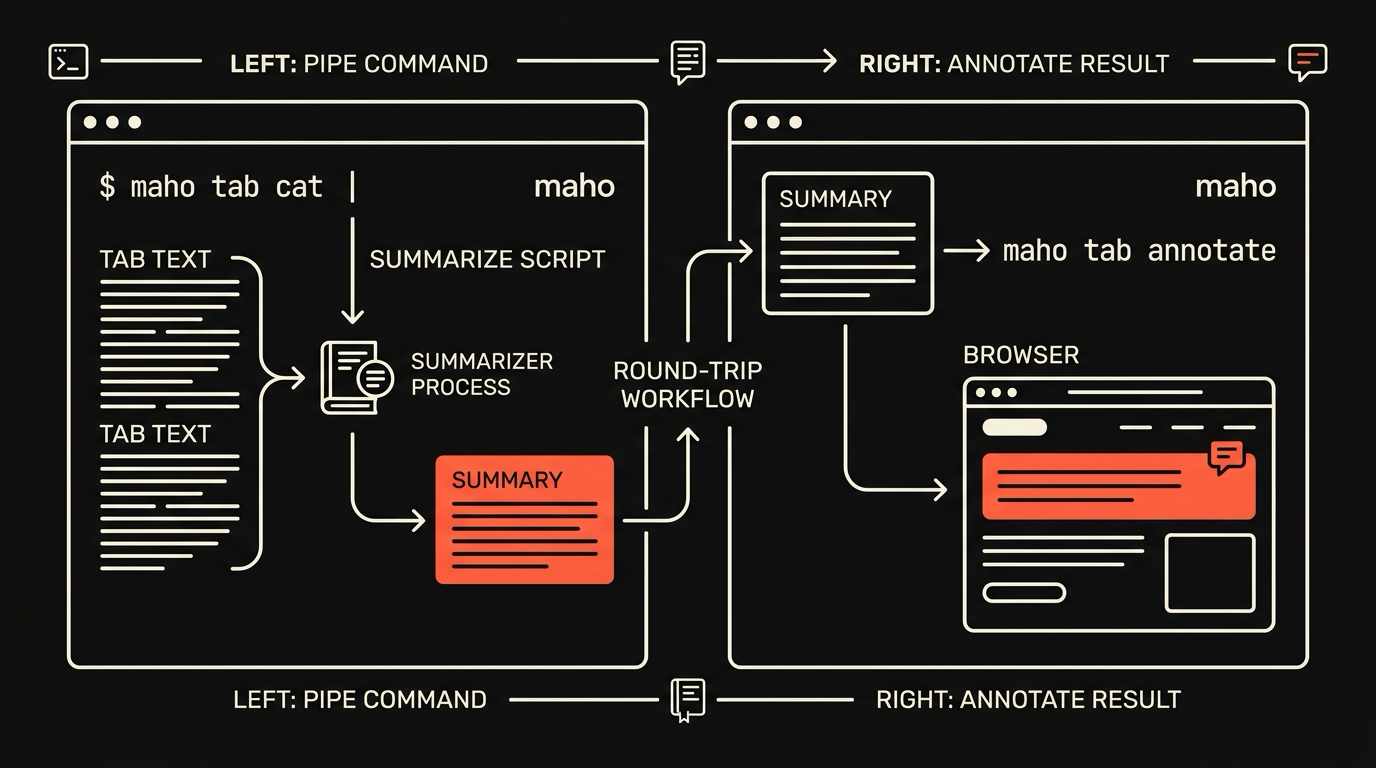
maho tab annotate takes a Markdown body on stdin and attaches it to the active tab as a side note. The annotation appears in the side panel, next to the page, anchored to the URL. It persists until you delete it.
$ echo "## Word count\n\n1,844 words, ~7 min read." | maho tab annotateAnnotation saved.Round-trip example. Read the article, summarize it with a local model, attach the summary back:
$ maho tab read \ | ollama run llama3.1 "Summarize in 5 bullets." \ | maho tab annotate --title "5-bullet summary"The summary lands in the side panel of the tab you are reading. It is anchored to the URL, so if you reopen the page tomorrow the summary is still there.
maho tab write is the more invasive sibling. It replaces the page contents with whatever you pipe in, treating the input as Markdown and rendering to a clean reader-mode view. This is destructive in the sense that it overwrites the rendered view (the original is one keystroke away). The default keybinding to revert is the same one that exits reader mode.
$ pandoc draft.md -t html | maho tab write --format htmlContent written to tab.Writes a rendered preview of draft.md into the current tab. Useful when you want a “what would this look like in a browser” view without spinning up a static server.
Three real workflows
Section titled “Three real workflows”Three of these we use multiple times a week.
Word-count guard before publishing. A long-form post has a target range. The shell has the answer in one line.
$ maho tab read --format text | wc -w 1623Run on the live preview. If it is short, you know before you ship.
Inspect the tab list. Before targeting a specific tab, check what is open:
$ maho tab listID TITLE URL ACTIVE4 How browsers handle paste https://example.com/articles/paste *7 Linear – My Issues https://app.linear.app/team/issues12 maho CLI reference https://mahobrowser.com/cli/Pick a tab id, then pass --tab N to any maho tab read or maho tab annotate call.
Quick conversion to a local format. A research page in Markdown into a Word doc for a colleague:
$ maho tab read | pandoc -f markdown -t docx -o research.docxThe browser is the source. Pandoc is the transformer. The shell is the glue.
Each of those is two minutes saved per occurrence. Multiplied across a week of work, this is the kind of small productivity that compounds without anyone noticing it. The right kind of tool.
Download Maho
Section titled “Download Maho”The CLI helper ships with the Maho browser preview. The MCP tool surface ships at the same time. Docs come with the build.
Updated 2026-07-06: rewritten to match shipped maho CLI syntax.