
Run an MCP server for your browser
The most useful agentic browser is the one that calls your tools, not the one that ships with a fixed list. Maho hosts MCP servers because the alternative is asking your team to wait for us to add every integration you can think of. The protocol exists. The host exists. The only thing missing is your server.
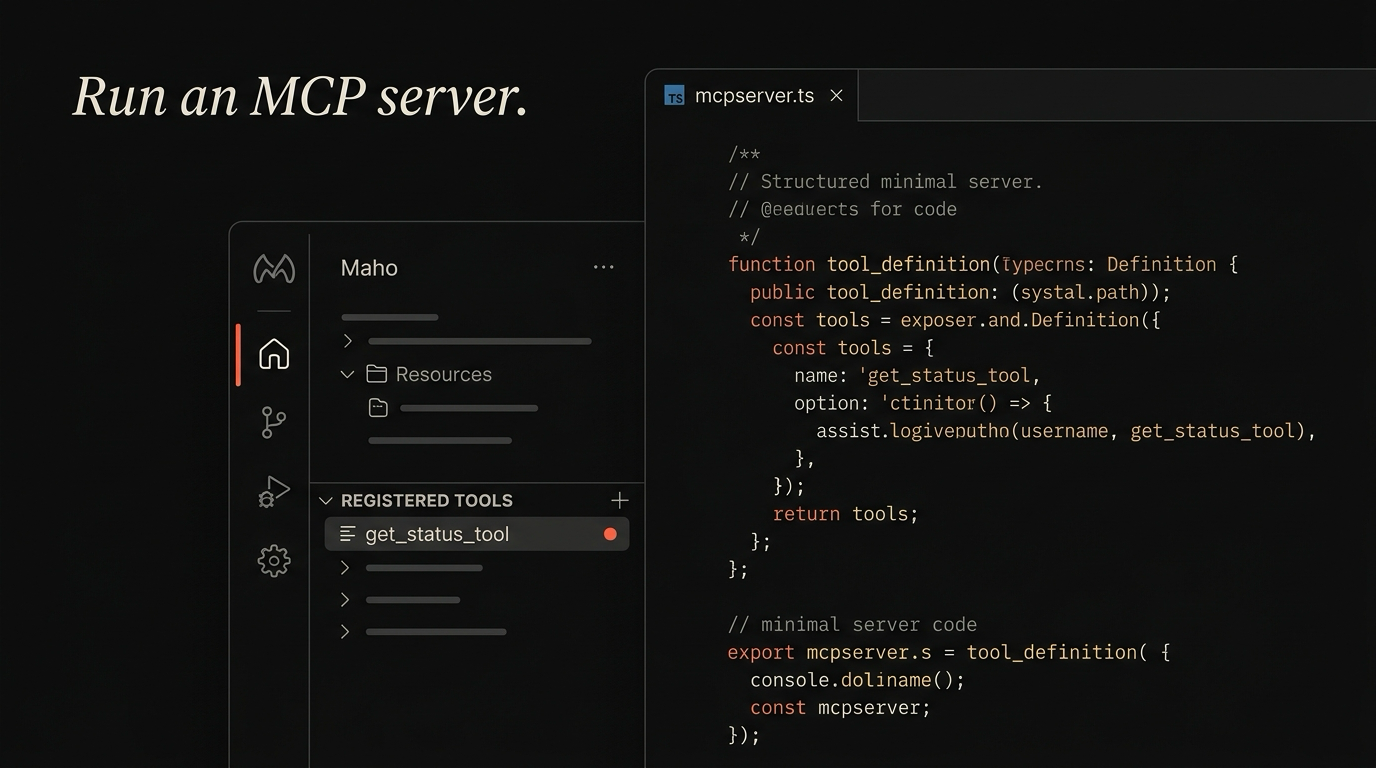
This post walks through writing a small MCP server in TypeScript, defining one tool, registering it with Maho, and calling it from the AI panel. It assumes you have a recent Node.js and a working terminal. If you have built a CLI in Node before, you have the prerequisites.
What you need before you start
Section titled “What you need before you start”You need Node.js 20 or newer, a package manager you trust (we use bun internally, but npm and pnpm work fine), and Maho 1.0.0 or later. You also need a clear idea of what your tool does. The single most common mistake is trying to ship a server that does ten things on day one. Pick one.
Good first tools are the small, repetitive things you already do. Looking up a row in an internal database. Hitting a service that does not have a public API. Wrapping a shell script you run twice a day. The model can call them all eventually. For your first server, the goal is one tool that returns one shape of data, well-typed.
You also need to decide who runs the server. MCP servers can run as a child process the host launches (stdio transport) or as a long-lived service on a port (http transport). For a personal tool, stdio is easier. For something a team shares, http is cleaner. We will use stdio because it is fewer moving parts.
If you have already read the MCP overview post, skip to step one. If not, the short version is: MCP is a JSON-RPC protocol that lets a model call functions you define, with a permission gate the user approves. The browser is the host. Your code is the server.
Step 1: scaffold an MCP server
Section titled “Step 1: scaffold an MCP server”Create a directory, initialize a package, and install the SDK.
mkdir maho-weather-mcp && cd maho-weather-mcpnpm init -ynpm install @modelcontextprotocol/sdk zodnpm install -D typescript tsx @types/nodenpx tsc --initOpen package.json and set "type": "module". Then create src/index.ts:
import { Server } from "@modelcontextprotocol/sdk/server/index.js";import { StdioServerTransport } from "@modelcontextprotocol/sdk/server/stdio.js";import {  CallToolRequestSchema,  ListToolsRequestSchema,} from "@modelcontextprotocol/sdk/types.js";
const server = new Server(  { name: "weather", version: "0.1.0" },  { capabilities: { tools: {} } },);
async function main() {  const transport = new StdioServerTransport();  await server.connect(transport);}
main().catch((err) => {  console.error(err);  process.exit(1);});
That is the skeleton. It registers a server named weather, connects it over stdio, and waits for requests. It does not expose any tools yet. Run it once to confirm the wiring is right:
npx tsx src/index.tsThe process should start and stay alive without output. Kill it with Ctrl-C. If you see an import error, your tsconfig.json likely has "module": "commonjs". Set it to "NodeNext" and the SDK imports will resolve.
Step 2: define one tool that does one thing
Section titled “Step 2: define one tool that does one thing”The tool we are building looks up a current temperature for a city. The implementation could be a weather API, but the shape is what matters. Add this above main():
import { z } from "zod";
const GetWeatherInput = z.object({  city: z.string().describe("City name, e.g. 'Seoul' or 'Berlin'"),});
server.setRequestHandler(ListToolsRequestSchema, async () => ({  tools: [    {      name: "get_weather",      description: "Return the current temperature for a city, in celsius.",      inputSchema: {        type: "object",        properties: {          city: { type: "string", description: "City name" },        },        required: ["city"],      },    },  ],}));
server.setRequestHandler(CallToolRequestSchema, async (request) => {  if (request.params.name !== "get_weather") {    throw new Error(`Unknown tool: ${request.params.name}`);  }  const args = GetWeatherInput.parse(request.params.arguments);  const tempC = await fetchTemperature(args.city);  return {    content: [      { type: "text", text: `Current temperature in ${args.city}: ${tempC} celsius` },    ],  };});
async function fetchTemperature(city: string): Promise<number> {  // Replace with a real API call. Stubbed for the tutorial.  return Math.round(Math.random() * 30);}
Three things deserve attention. The name is what the model sees when picking a tool. Keep it short and verb-led: get_weather, not WeatherFetcher. The description is what the model reads to decide whether to call it. Write it like a docstring, not a marketing line. The inputSchema is JSON Schema, and Maho uses it to validate the model’s arguments before your code ever runs. Tight schemas are the cheapest defense against a model hallucinating an argument shape.
Step 3: register the server in Maho
Section titled “Step 3: register the server in Maho”Maho looks for MCP servers in a config file at ~/.config/maho/mcp.json. Open it (create it if it does not exist) and add an entry:
{ "servers": { "weather": { "command": "npx", "args": ["tsx", "/Users/you/code/maho-weather-mcp/src/index.ts"], "transport": "stdio" } }}The path is absolute because Maho launches the server from its own working directory. If you would rather build to JavaScript first, run tsc and point args at the compiled file. Either works.
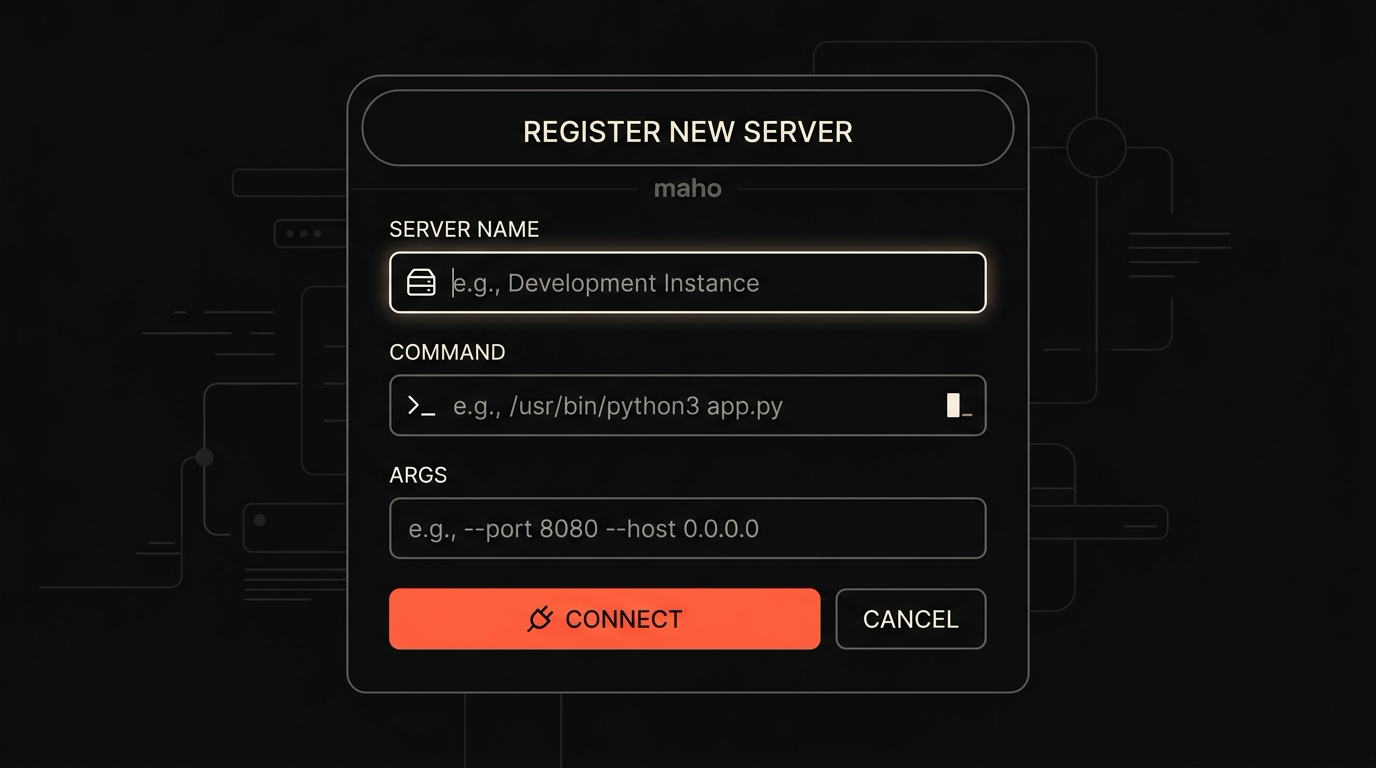
Restart Maho. Open Settings, then AI, then MCP Servers. The weather server should be listed with status connected and one tool: get_weather. If it shows disconnected, click the entry to see the stderr. The most common cause is a missing node_modules directory or a wrong path.
For more on how the browser AI panel treats MCP tools as first-class citizens, see the AI surface docs.
Step 4: test from the side panel
Section titled “Step 4: test from the side panel”Open any page. Hit the AI panel shortcut (⌘⇧A by default). Type a prompt that should trigger the tool:
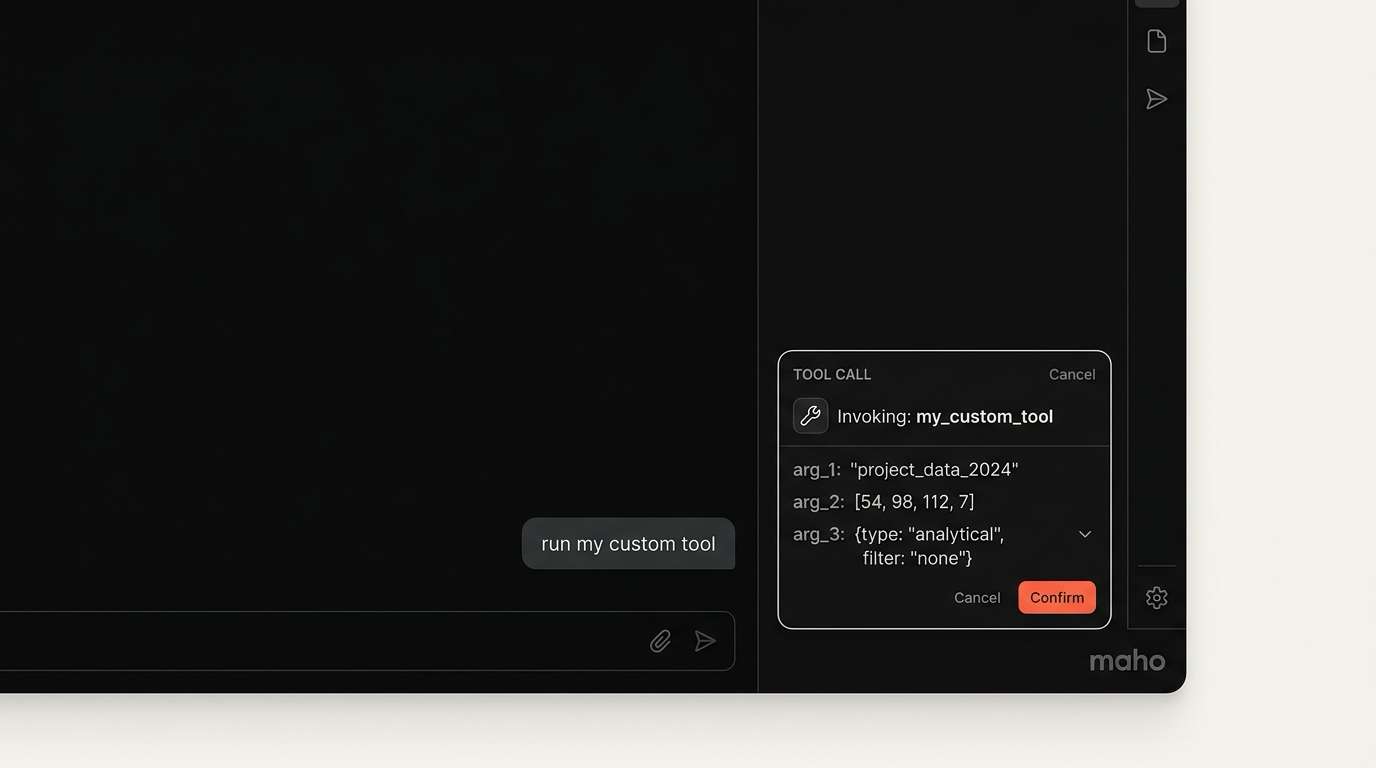
What is the temperature in Seoul right now?The model should propose calling get_weather with { "city": "Seoul" }. Maho shows the proposal in the panel before the call fires. The first time you approve, the prompt asks whether to allow this tool for the session, the conversation, or once. Pick once for now.
The tool runs, your stub returns a random number, and the model summarizes the result. The audit log at the bottom of the panel shows the full call: tool name, arguments, return value, duration. Copy the call ID if you want to debug from logs.
If the model never proposes the tool, the description is probably not specific enough. Models pick tools by reading descriptions. A description that says “useful for weather queries” loses to one that says “Return the current temperature for a city, in celsius.” Be literal.
Step 5: ship it
Section titled “Step 5: ship it”Shipping means three things. First, replace the stub with the real implementation. For weather, that is a call to an HTTP API with an API key from your environment. Read the key from process.env, not from a file in the repo. Maho passes the host environment to the server process unless you override it in the config.
Second, add error handling that is useful to the model. If the city is not found, return an error in the MCP response, not a thrown exception. The model can read the error and try again with a different argument. A thrown exception just dies.
if (!response.ok) { return { isError: true, content: [{ type: "text", text: `City not found: ${args.city}` }], };}Third, decide on distribution. For a personal tool, the local path in mcp.json is fine. For a team tool, publish to a private npm registry and reference it as a global install. Maho supports both. The team version also lets you sign the server with a hash, so a teammate’s Maho refuses to load a tampered binary.
Common pitfalls
Section titled “Common pitfalls”The model called the wrong tool. Tighten the description. Add an example in the description field if needed.
The tool ran but returned nothing useful. Models cannot read your mind. Return text that explains what happened, not a raw JSON blob the model has to parse.
The server crashed silently. Add a try around your tool body and log to stderr. Maho captures stderr per server and shows it in the MCP Servers panel.
The grant prompts every call. You picked “allow once” by accident. Pick “allow for session” once you are sure the tool is safe.
Maho refuses to load the server. Check the JSON syntax of mcp.json. Trailing commas are the most common cause.
Download Maho
Section titled “Download Maho”If you want to write servers for your own workflows, Maho ships the host. You bring the tools.