
A CLI for your browser history
Your browser history is one of the most useful datasets on your machine. It is also one of the most awkwardly exposed. Most browsers give you a search box, a date list, and nothing else. You cannot pipe it. You cannot count it. You cannot grep it. The data is right there, locked behind a UI built for “what was that thing I read on Tuesday”.
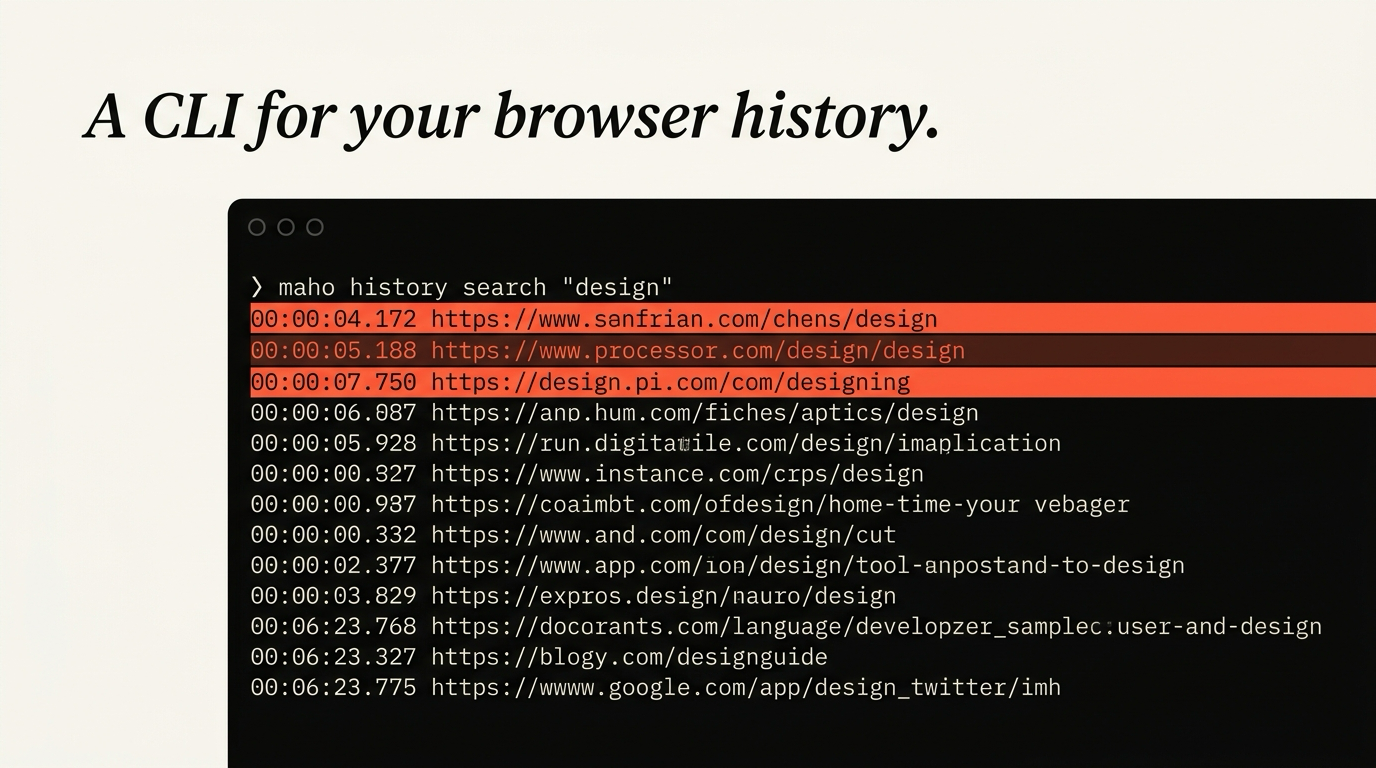
Maho ships a CLI for browser history. Not because the GUI is bad, but because once you have the data on the command line a different shape of question becomes easy. Which domains did I spend the most time on last week. What did I open from a Slack link in the past month. Which page did I close in the last ten minutes that I want back.
This post walks the schema and three queries. Then a section on backup and export, because if your browser history is going to be a real database, you want a copy of it that does not live only inside the browser.
For the broader CLI, see the CLI reference. For the related headless tool, see headless browsing with Maho.
The case for a CLI here
Section titled “The case for a CLI here”There are three reasons a history CLI is more useful than a search box.
The first is composition. A CLI returns lines. Lines pipe to grep, to fzf, to awk, to anything you already use. A search box returns a rendered list inside a panel. The list is fine for one query and useless for a chain of three.
The second is repetition. The same query, run weekly, becomes a habit. “What did I read on Mondays” or “what new domains showed up this week” is the kind of thing you can put in a cron or a launchd job and have a small report waiting. The GUI does not let you do this without writing a screen scraper.
The third is honesty. The CLI is a thin layer over the underlying SQLite store. What you see is what is there. A search box is a curated view. A CLI is the raw data with a small wrapper. If you want to know what your browser actually knows about you, the CLI tells you faster than the GUI does.
The schema, in plain terms
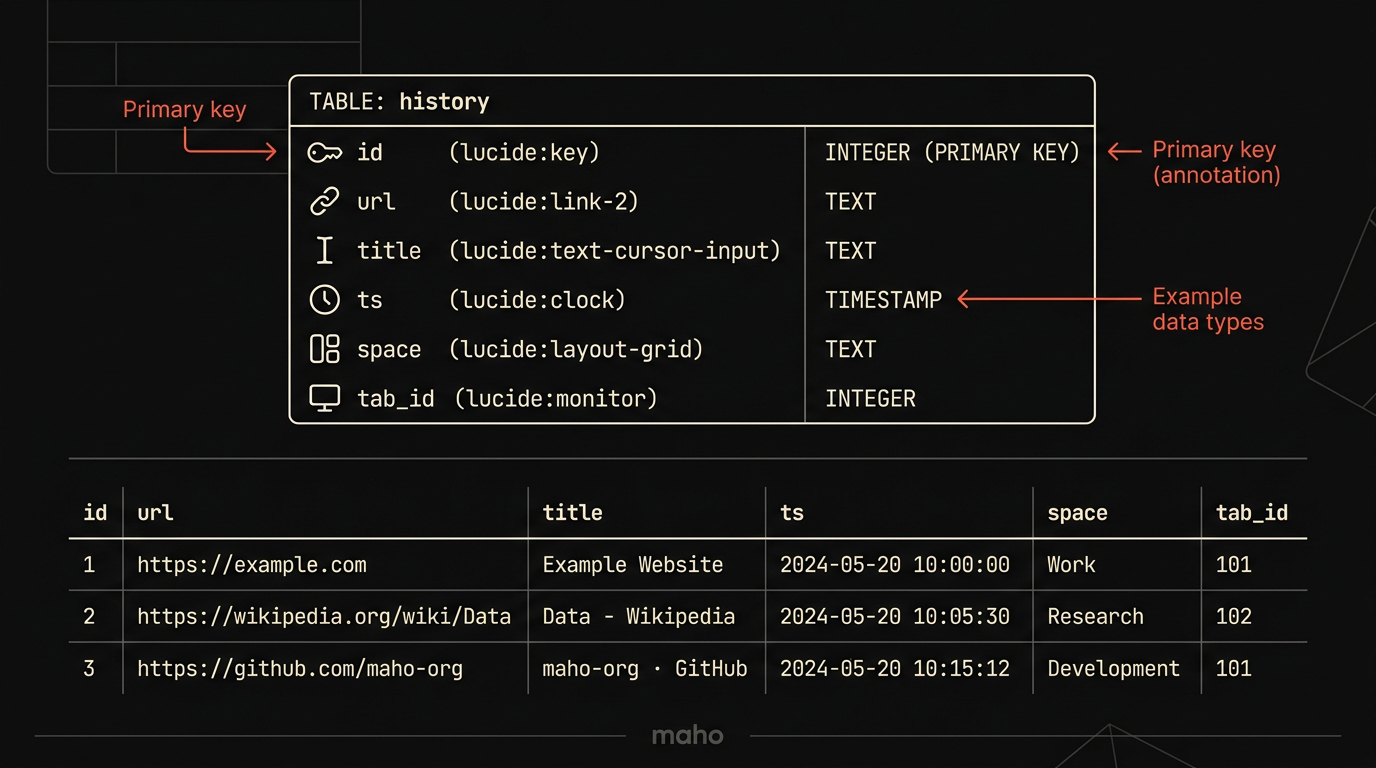
Section titled “The schema, in plain terms”The history table is small and intentional.
history( id INTEGER PRIMARY KEY, url TEXT NOT NULL, title TEXT, ts INTEGER NOT NULL, -- unix seconds, UTC space TEXT, -- the Maho space the visit happened in tab_id INTEGER -- the tab that produced the visit, may be null)A few notes.
Each row is a visit, not a unique URL. If you load the same page three times, three rows. If you want unique URLs, that is a GROUP BY url away.
ts is unix seconds in UTC. The CLI presents it in local time by default. Anyone writing a SQL query directly should remember the underlying value is UTC.
space is the Maho space the visit happened in. Spaces are how Maho separates work, personal, and projects. A history search can scope to one space or span all of them. Spaces are not visible to the page, only to you.
tab_id is the tab the visit came from. It is null for some legacy and imported entries. It is useful for “show me all visits in the same browsing session” without writing a session inference algorithm yourself.
The store is a SQLite file. The CLI reads it through a small library that handles the WAL and the concurrent writes from the GUI. Do not open the file with the sqlite3 CLI directly while the browser is running. You can corrupt the journal in rare cases. The Maho CLI takes the right locks for you.
For more on what the file looks like at rest and how it is encrypted, see the browser history encryption explainer.
Query 1: last seven days, grouped by domain
Section titled “Query 1: last seven days, grouped by domain”The first query is the one that pays for the CLI by itself.
maho history list --since 7d --domain## github.com 2026-06-29 09:14 Pull Request #482 — fix tab leak on close https://github.com/... 2026-06-30 11:02 Pull Request #490 — add lease heartbeat https://github.com/...
## news.ycombinator.com 2026-06-28 08:31 Ask HN: How do you manage dotfiles? https://news.ycombinator.com/item?id=...
## app.linear.app 2026-06-29 14:55 Linear – My Issues https://app.linear.app/team/issuesEach domain gets a ## domain header. Under it, each visit shows the timestamp, title, and URL, two lines per entry. The --since flag accepts short forms: 1h, 30m, 7d, 4w, or an ISO date for the cut.
This is the query that tells you what the past week looked like. It is honest in a way that makes some weeks uncomfortable. If you have ever wondered whether you really spent that much time on a specific site, this query answers it.
Two related forms worth knowing.
maho history list --since 24h --domain --limit 5Top entries from the last day, limited to five domain groups. Useful as a quick report.
maho history list --since 7d --space work --domainSame query scoped to the work space. If you keep your work tabs in one space and your reading in another, this is the version of the query that gives you actual work data without your morning reading drowning it out.
Query 2: search by title or URL substring
Section titled “Query 2: search by title or URL substring”The second query is for finding something specific you remember visiting.
maho history search --title-substring "release notes" --since 30d2026-06-15 10:22 Astro 5.0 Release Notes https://astro.build/blog/astro-5/2026-06-20 14:07 Starlight 0.28 Release Notes https://starlight.astro.build/changelog/Each match prints as a two-line block: timestamp and title on the first line, URL indented on the second. The default format is readable for eyeballing. Pass --json at the global level for machine-readable output:
maho --json history search --title-substring "release notes" --since 30d{ "entries": [ {"id": 14123, "url": "https://astro.build/blog/astro-5/", "title": "Astro 5.0 Release Notes", "visited_at": "2026-06-15T10:22:00Z"}, {"id": 14217, "url": "https://starlight.astro.build/changelog/", "title": "Starlight 0.28 Release Notes", "visited_at": "2026-06-20T14:07:00Z"} ]}The search subcommand also takes --url-substring, --referrer-domain, and --space. All filters combine with AND. To find everything you clicked from a Slack link in the last month:
maho history search --referrer-domain slack.com --since 30dThat is the “what did the team share with me this month” query. Slack messages with links are easy to lose track of in Slack itself. Once they have been clicked, they live in the history with the Slack referrer.
Query 3: pipe to fzf for live search
Section titled “Query 3: pipe to fzf for live search”The third query is the one you keep in your shell config.
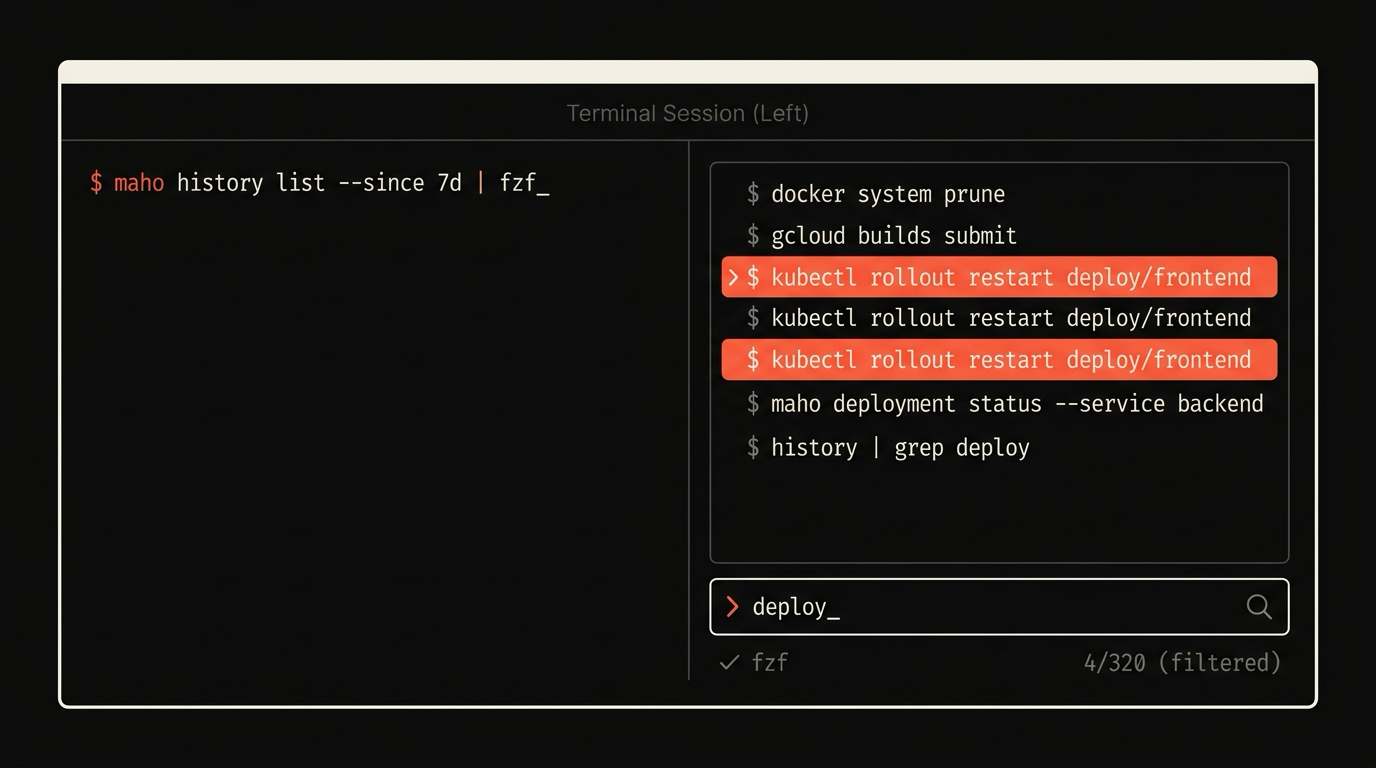
maho --json history search --since 30d \ | jq -r '.entries[] | "\(.id)\t\(.url)\t\(.title)"' \ | fzf --with-nth=2..What this does, in order. Search the last 30 days and get JSON. Transform each record with jq into a tab-separated line with id first (hidden from the picker), then URL and title. Pipe to fzf for fuzzy live search. The result is the full selected line including the id.
The full pipeline to pick a result and open it in a new tab:
maho --json history search --since 30d \ | jq -r '.entries[] | "\(.id)\t\(.url)\t\(.title)"' \ | fzf --with-nth=2.. \ | cut -f2 \ | xargs -I{} maho tab navigate 1 --url {}This is faster than the history panel and faster than a search engine, because it is searching only what you have already seen.
A short alias is worth setting:
alias h='maho --json history search --since 30d | jq -r '"'"'.entries[] | "\(.id)\t\(.url)\t\(.title)"'"'"' | fzf --with-nth=2.. | cut -f2'After that, h from the terminal is a small superpower.
Backup and export
Section titled “Backup and export”A history database that lives only inside one browser is a single point of failure. Maho ships an export.
maho history export --out ~/backups/history-$(date +%Y-%m-%d).ndjsonThe output is NDJSON, one record per line, with the same fields as the schema above plus a wall-clock timestamp for human readability. The file is plaintext after export. If you keep these on disk, encrypt the directory or pipe through age on the way out.
maho history export | age -r $YOUR_AGE_KEY > ~/backups/history.ndjson.ageA nightly version of this in a launchd job is fifteen lines of plist and a habit you will be glad of the first time a disk dies.
Re-importing into a fresh Maho install is the obvious mirror:
maho history import ~/backups/history-2026-11-09.ndjsonThe import is idempotent. Records that are already in the local store are skipped. You can run it twice without doubling rows.
Download Maho
Section titled “Download Maho”A browser history that is just a database, and a CLI that treats it like one, is a small thing that changes how you work. Download Maho.
Updated 2026-07-06: rewritten to match shipped maho CLI syntax.