Keyboard-first browsing in 2026: not an afterthought
If you spend more than four hours a day in a browser, the speed of your day is set by how fast your hands can move between thinking and doing. The mouse is the wrong instrument for that. It always has been. The reason it survives is that browsers shipped a keyboard model that was good enough for accessibility audits and stopped there.
Maho’s keyboard model is not an audit pass. It is the assumption that a power user can do every common workflow without lifting hands off the home row. This post is what we ship by default, what you can customize, what you cannot, and the workflows where the mouse still wins.
Why most browsers fail at keyboard
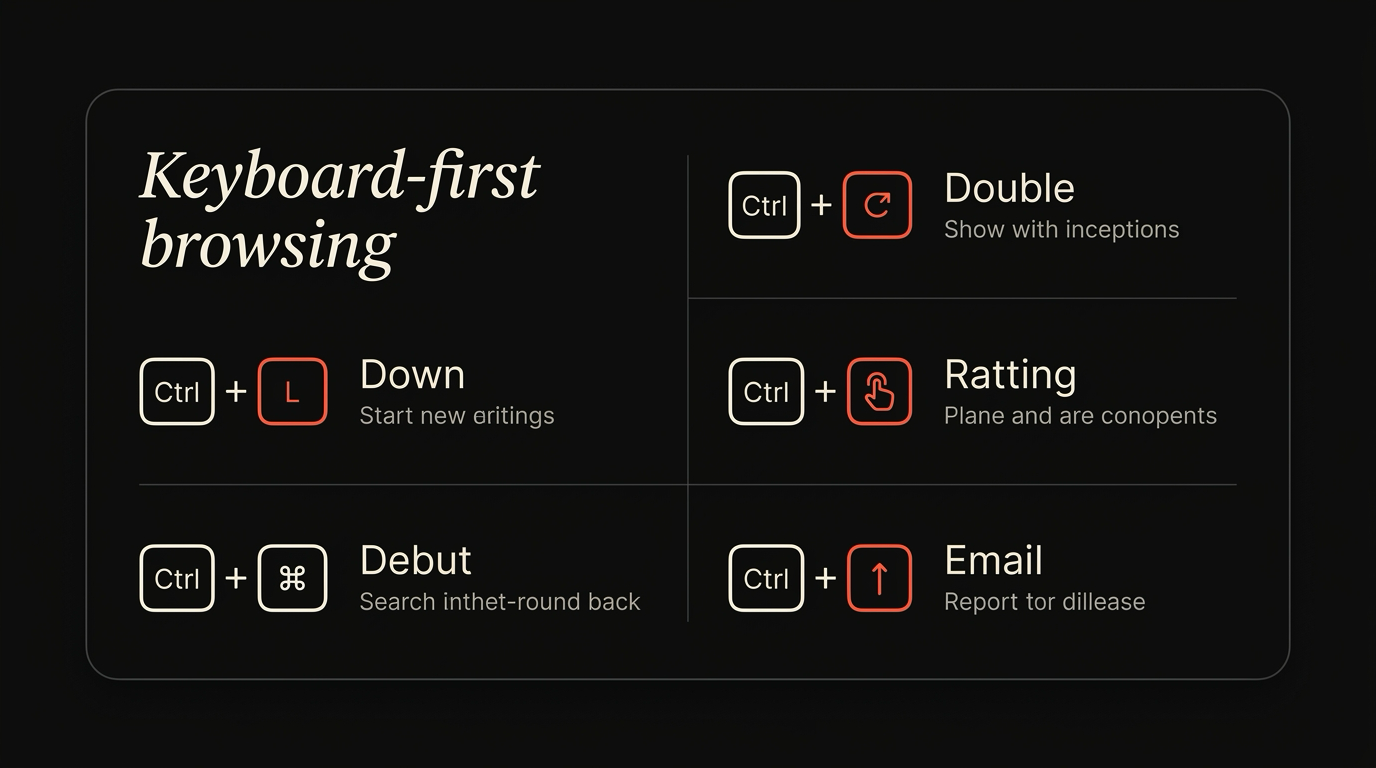
Section titled “Why most browsers fail at keyboard”The default keyboard story in Chrome, Safari, and Firefox is twenty years old. New tab, close tab, switch tab, address bar, find in page. After that, the model runs out. Want to switch profiles by keyboard? You cannot, in a portable way. Want to jump between tab groups? Not without an extension. Want to focus a specific panel? Click.
The reason is not that browser teams are bad at keyboards. It is that the keyboard model in a Chromium app is a side effect of the menu bar. Whatever a menu item does, the shortcut runs. Whatever a menu item does not do, you cannot bind. The menu bar is a 1984 design constraint, and the keyboard surface inherits it.
Power users worked around this for years with extensions: Vimium, Surfingkeys, Tridactyl. Those tools are excellent, but they live above the page and below the chrome. They cannot drive the address bar. They cannot drive the AI panel. They cannot drive Spaces. They cannot drive the parts of the browser that are not in the page.
The fix is to make the keyboard surface a first-class layer of the browser, not a wrapper on the menu. That is the bet Maho makes.
The Maho default cheatsheet
Section titled “The Maho default cheatsheet”The shortcuts below are what a fresh Maho install gives you. Every entry has a default. Every entry can be remapped.
| Shortcut | Action |
|---|---|
⌘T | New tab |
⌘W | Close tab |
⌘⇧T | Reopen closed tab |
⌘[ / ⌘] | Back / forward |
⌘L | Focus address bar |
⌘K | Command bar (search, navigate, run actions) |
⌘F | Find in page |
⌘⌥← / ⌘⌥→ | Switch Spaces |
⌘1 … ⌘9 | Jump to tab N in current sidebar |
⌘⇧A | Open AI panel |
⌘⇧S | Summarize current page |
⌘⇧M | Send selection to AI panel |
⌘⇧E | Toggle reader mode |
⌘⇧P | Profile switcher |
⌘⇧I | Developer tools |
⌘⇧B | Toggle sidebar |
⌘. | Cancel current operation (load, agent task) |
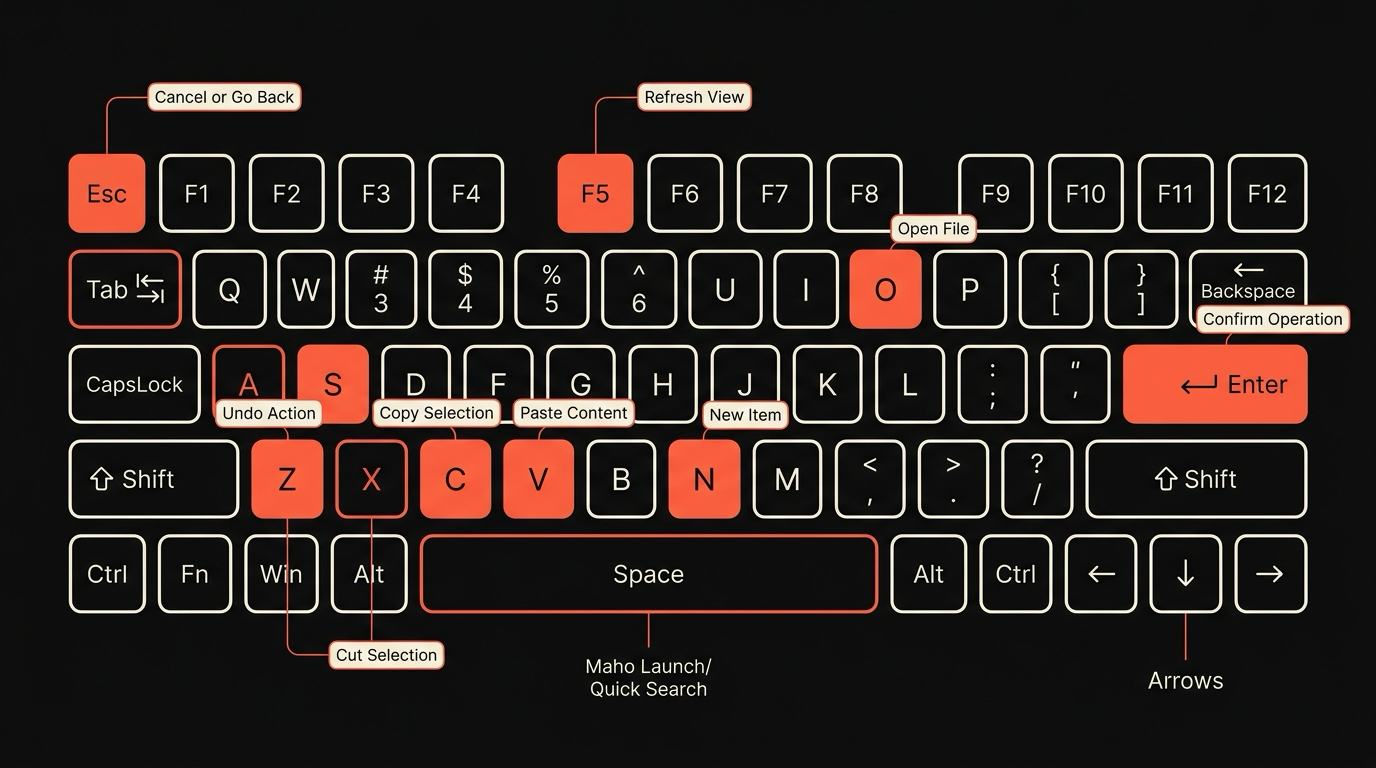
The set is opinionated. The pattern is that ⌘⇧ is the modifier for browser-level actions (AI, Spaces, reader, profile), while ⌘ alone is for tab-level actions (new, close, focus). The point of the convention is that you do not have to memorize each shortcut, you have to memorize the shape.
The command bar (⌘K) is the safety net. Anything you cannot remember the shortcut for, you can run by name. Type “summarize” and the summarize action shows up. Type the name of any tab in any Space and the bar will switch to it. The cheatsheet is the surface. The command bar is the depth.
Customization (and where it stops)
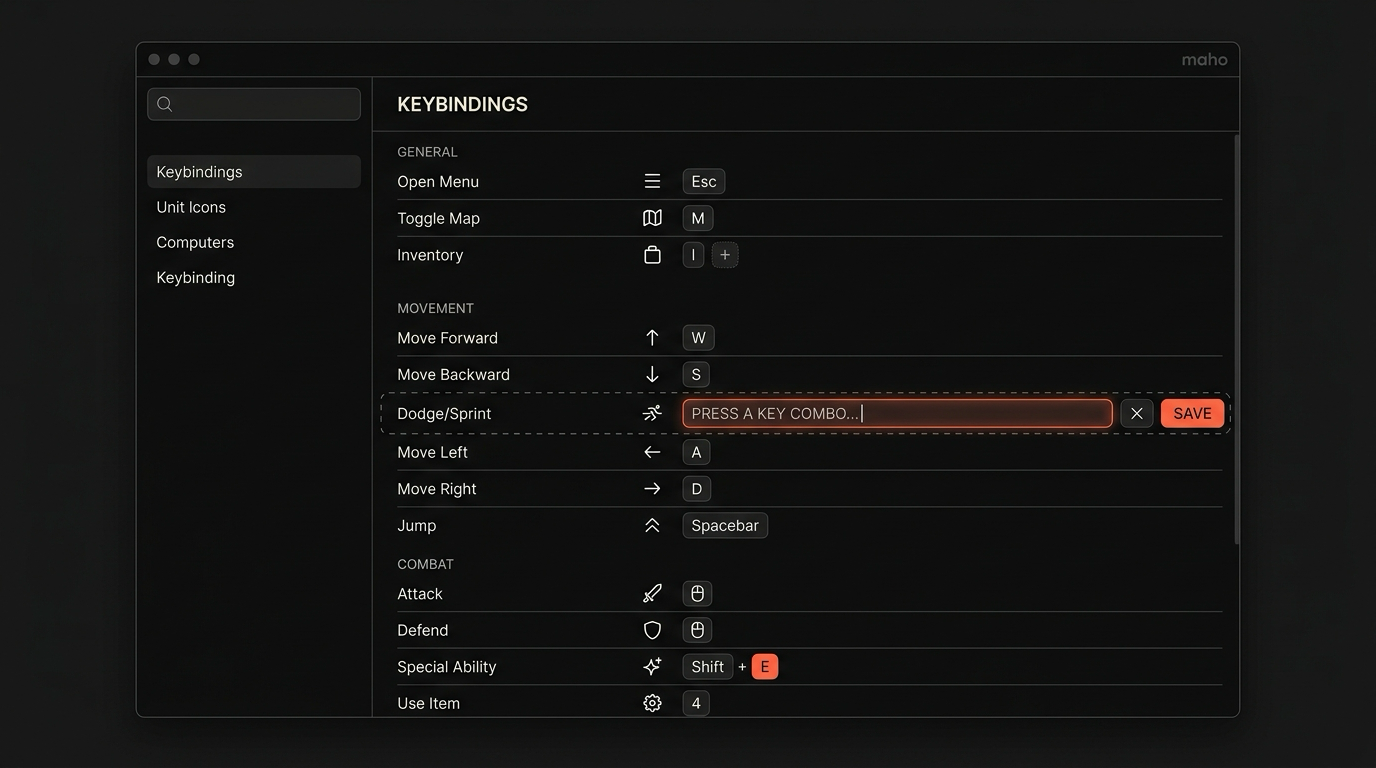
Section titled “Customization (and where it stops)”Every shortcut in the table above is rebindable. Open Settings, Keyboard, and you get a list. Click an action. Press the new chord. Done. There is no key-string text field, no cmd+shift+a config syntax. The bind UI captures the chord directly.
You can also bind shortcuts to actions that do not have defaults: jump to a specific Space by index, run a specific MCP tool, focus a named panel. The action list is the union of every keyboard-addressable thing in the product. We did not pick a subset.
What we do not let you do is rebind across the modifier conventions in a way that would conflict with macOS. ⌘Q quits. ⌘C copies. We do not let you take those over even if you would like to. The fights are not worth it.
Profiles get their own keyboard layer. If you keep a work profile and a personal profile, you can bind different shortcuts in each. The work profile can have ⌘⇧J open Linear in a new tab. The personal profile can have ⌘⇧J open something else. The same chord, different semantics, scoped per profile. This is one of the things power users have asked for in every other browser and never gotten.
There is no userChrome.js, and there will not be. The customization layer is the bind UI, the command bar, and Spaces. If you want to script the chrome itself, the browser docs cover what is exposed and what is not.
Three workflows that should be keyboard-only
Section titled “Three workflows that should be keyboard-only”The first is research. You are reading a page, you find a fact you want to keep, you want to summarize and pin it. The keyboard path is: ⌘⇧A to open the AI panel, ⌘⇧M to send the current selection to it, type a one-line prompt, hit return. The summary lands in the panel with the source linked. Pin it with ⌘⇧P (in the panel context). No mouse touched.
The second is tab juggling across contexts. You have work tabs in one Space and personal in another. The keyboard path is ⌘⌥→ to switch Spaces, then ⌘1 through ⌘9 to land on the tab you want. If you need a tab that is not in the first nine, hit ⌘K and type its name. Spaces do the heavy lifting that tab groups cannot, and the Spaces post covers the model in detail.
The third is form filling on a known site. Open the site. Hit ⌘⇧A. The AI panel knows the page. Tell it what you want filled. It proposes the field map, you approve, the form fills. The mouse stays put. This is one of the workflows that justifies the agent panel as a keyboard-first surface, not a chat sidebar. A chat that needs the mouse to confirm every step is just a slower chat.
Where the mouse still wins
Section titled “Where the mouse still wins”We are honest about the gaps.
Selecting an arbitrary range of text inside a complex page is faster with a mouse. The keyboard primitives for “from this word in this paragraph to that word three paragraphs down” are slower than a click-and-drag. We have not solved this. Vimium-style hint mode helps for known link targets but does not help for ad-hoc text ranges.
Drag-and-drop reordering of items in a list-style page (Notion, Linear, Trello) is mouse-only by design of the page, not of the browser. We cannot fix this from the chrome. The page would need to expose a keyboard reorder primitive, and most do not.
Canvas-style apps (Figma, Excalidraw, Photoshop on the web) are mouse-first because the input model is. Maho ships the same keyboard layer over them as any other site, but the in-app surface is what most of your time goes into, and we cannot rewrite it.
Specific browser actions inside iframes (cross-origin embeds, payment frames) sometimes lose keyboard focus in ways that match Chromium upstream. We are tracking these and fixing what we can without breaking the security model. Some of them are actively required by the security model, and there is no fix from our side.
The point is not that the mouse is dead. It is that, for the work most power users do most of the time, the keyboard should be the primary surface and the mouse should be the fallback. Most browsers ship the inverse.
Download Maho
Section titled “Download Maho”If a keyboard-first browser sounds like the one you have been waiting for, Maho is ready to download.