
Building an agentic workflow: from search to ticket
The interesting question about agentic browsers is not whether they can summarize a page. They can. The interesting question is what happens after the summary, when the result has to leave the browser and land in a ticket, a doc, or a calendar.
This post walks through one workflow, end to end. The user is researching Postgres connection pool tuning. They open four articles, ask the side panel for a comparison, then ask the side panel to file a Linear ticket with the conclusion. Five stages, five permission decisions, five places the workflow can break. We cover all of them.
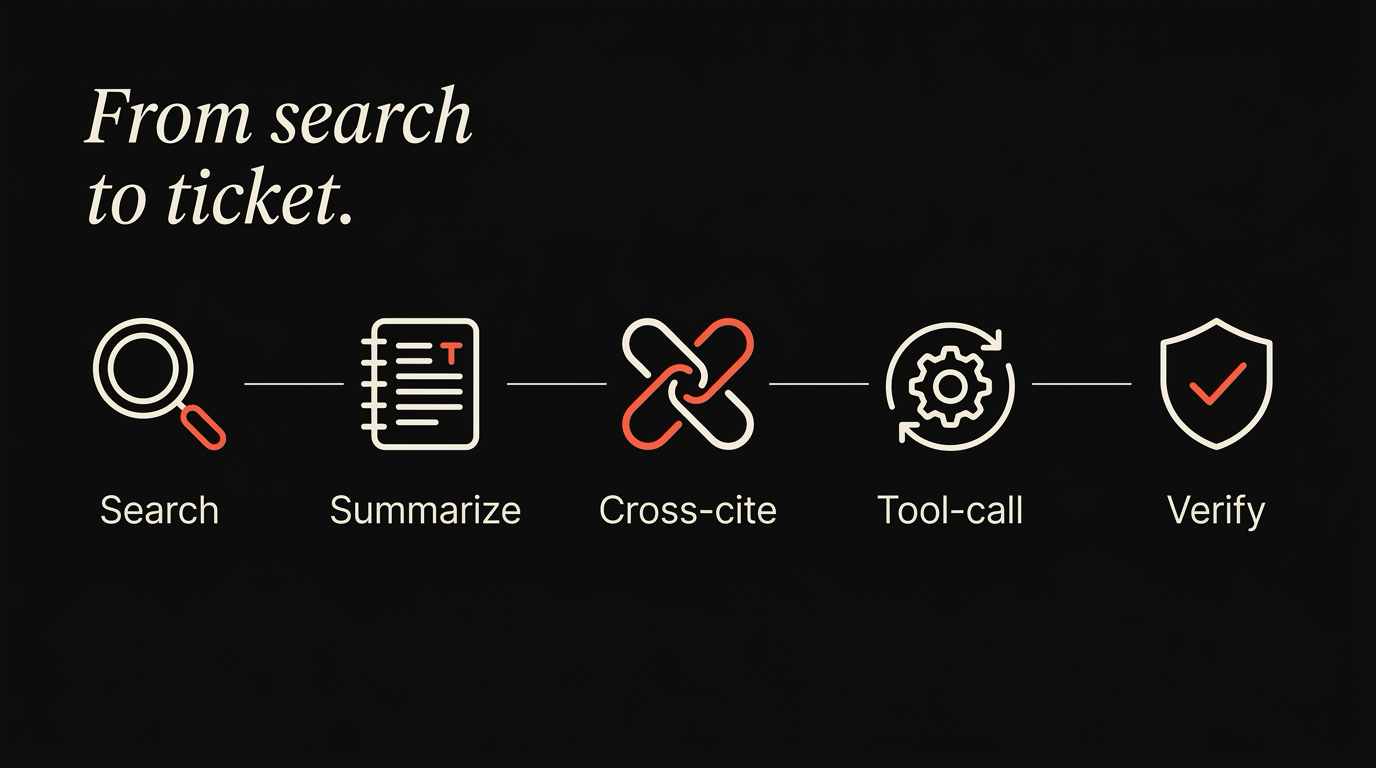
Start with the manual version, because that is what we are improving on.
A backend engineer notices their service is leaking connections under load. They open a browser and search “postgres connection pool tuning”. They open four results: the Postgres docs on connection limits, a PgBouncer configuration guide, a blog post benchmarking different pooler settings, and a Stack Overflow thread about a specific symptom they recognize.
They read all four. They open a notes app. They write down the trade-offs: pool size versus latency, transaction pooling versus session pooling, the specific knob the Stack Overflow thread recommends. They open Linear. They create a ticket. They paste the notes, edit them into a coherent description, set the project, set the priority, hit save. They go back to the four tabs and close them.
The whole thing takes between thirty and ninety minutes, depending on how distractible the engineer is. Most of the time is spent in the seam between reading and writing. The browser had everything. The notes app and Linear had nothing until the engineer copy-pasted it across.
An agentic browser is supposed to close that seam. The rest of this post is what closing it actually looks like.
Stage 1: search and gather
Section titled “Stage 1: search and gather”Formulating search queries
Section titled “Formulating search queries”Using the LLM to refine keywords for the tool calls.
Filtering redundant results
Section titled “Filtering redundant results”Removing duplicates and low-relevance URLs before context ingestion.
The user types “postgres connection pool tuning” into the address bar. The browser does what every browser does: runs the search, returns results.
This stage is not where the agent earns its money. The user picks the four results that look promising. The agent could rank them, and a future version probably will, but ranking is a different feature. For this workflow, four tabs are open by the user, in their order, with their titles intact.
The relevant detail is what the browser is doing in the background while the user opens the tabs. Each tab gets indexed for the side panel: the URL, the title, the rendered text, a structured outline if the page has headings. This index is local. It is the input the agent uses in the next stage. It does not leave the device unless the user has configured a remote model and explicitly asks the panel a question.
A user who has not opened the side panel yet at this point has zero agent activity. Reading is reading. The agent is dormant until invoked. This matters for trust. The browser is not summarizing pages in the background, not pre-fetching content for the model, not scoring tabs for engagement. It indexes for search, the way every browser does, and it stops there.
By the end of stage 1, the user has four tabs open and zero permission prompts. The agent has not done anything that needs permission yet, because the agent has not been asked to do anything.
Stage 2: summarize with page context
Section titled “Stage 2: summarize with page context”Extractive summarization
Section titled “Extractive summarization”Capturing core paragraphs rather than abstract generation.
Headings structure indexing
Section titled “Headings structure indexing”Building an outline from H2/H3 elements on the target page.
The user clicks into the PgBouncer guide tab and opens the side panel. They type: “What are the trade-offs between transaction pooling and session pooling?”
This is page context, scoped to the active tab. The side panel reads the rendered text of the current tab and sends it, with the user’s question, to the configured model. If the model is a remote one, the request travels to the user’s BYOK endpoint over TLS. If the model is local, the request never leaves the laptop.
There is a permission prompt the first time the side panel reads page context, scoped to the conversation. The prompt says: “Read the current tab to answer questions in this conversation?” The default option is “Allow for this conversation.” The user clicks it. From that click forward, page-context reads in the same conversation do not re-prompt.
The model returns a summary: transaction pooling reuses connections aggressively but breaks session-scoped state, session pooling holds connections per client and trades concurrency for compatibility, the right choice depends on the application’s use of session features. The user reads the summary, switches to the Postgres docs tab, asks a follow-up: “What does the Postgres documentation recommend for high-concurrency services?”
Same scope, same permission. The active tab changed, the conversation did not. The side panel reads the new active tab and answers. No second prompt. The user has approved page context for the conversation, and that approval extends to whatever tab is foregrounded at the moment of the question.
This is the floor of the workflow. Every agentic browser worth the name does this stage. The next two are where browsers diverge.
Stage 3: cross-cite with conversation context
Section titled “Stage 3: cross-cite with conversation context”The user has read three of the four tabs through the side panel. They want a synthesis. They type: “Compare the recommendations across the tabs I have open.”
This is the question that breaks chat panels. The model needs to see all four tabs, not just the active one. The side panel asks: “Read all four open tabs to compare recommendations?” The prompt lists the URLs, in order, with their titles. The user reads the list. They click “Allow for this conversation”.
Tab awareness is the scope that just got granted. It is distinct from page context, because the user might want one without the other. A user who is fine with the agent reading the active tab might not want the agent reading every tab in the window. The two switches are separate by design.
With tab awareness granted, the side panel reads all four tabs and produces a comparison. The output names each source by its title and links back to the URL. The Postgres docs say one thing, the PgBouncer guide says another, the benchmark post adds nuance, the Stack Overflow thread is consistent with the benchmark. The agent does not invent a synthesis the sources do not support, and when two sources disagree, it says so.
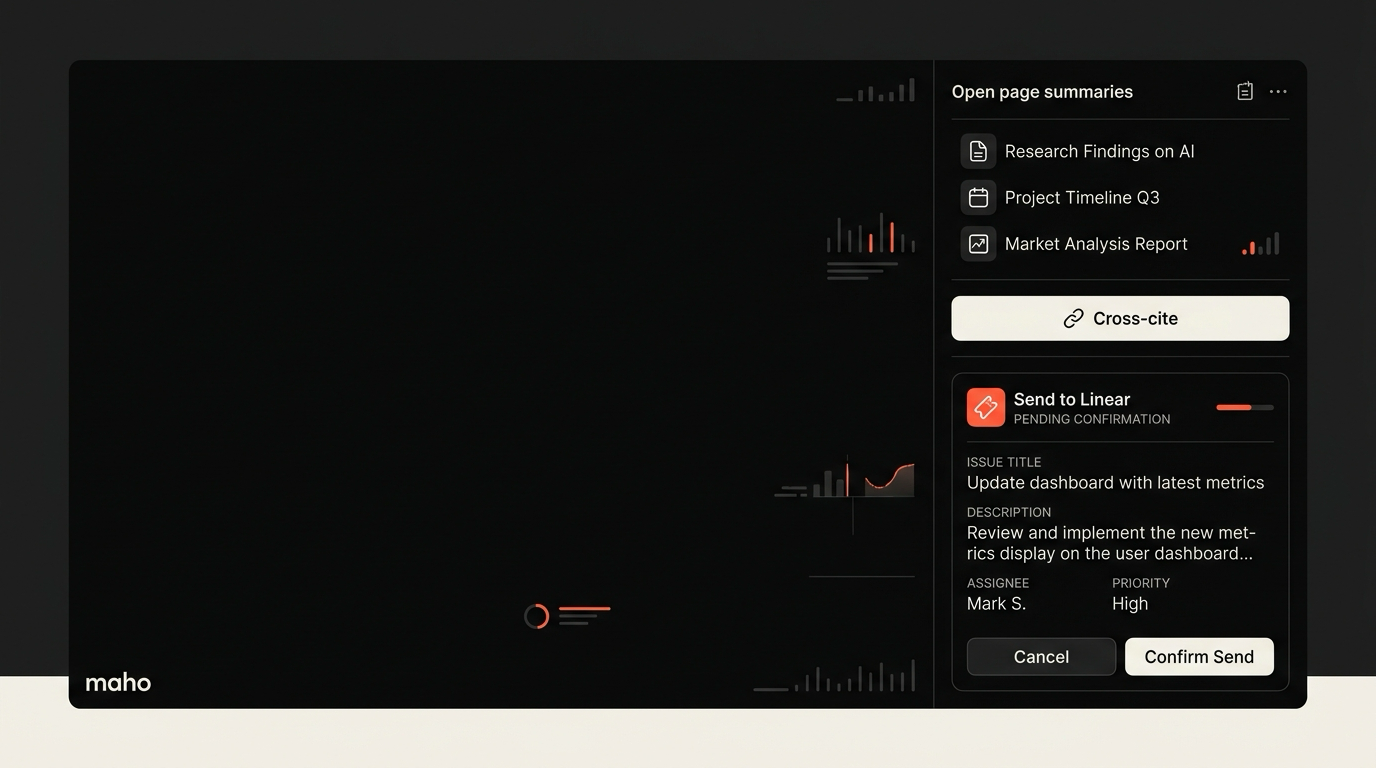
The user reads the comparison. They edit it slightly in the panel. The edited version is what the next stage will use as input.
A note on what just happened. The agent did not have access to the tabs until it asked. The asking happened in plain text, with the URLs visible, with a default scope of “this conversation only”. The audit log has a row for the prompt, a row for the approve, and a row for each tab read. None of this is invisible. None of it is permanent. Closing the conversation drops the grant.
Stage 4: tool-call into Linear (MCP)
Section titled “Stage 4: tool-call into Linear (MCP)”The user types: “File this in Linear under the Database project, priority medium, with me as the assignee.”
This is where the workflow leaves the browser. The agent has a tool, linear.create_issue, exposed by the user’s registered Linear MCP server. The MCP server was added once, in settings, with an API key the user pasted from Linear. The host knows the tool exists, the tool’s typed input, and the origin (linear.app).
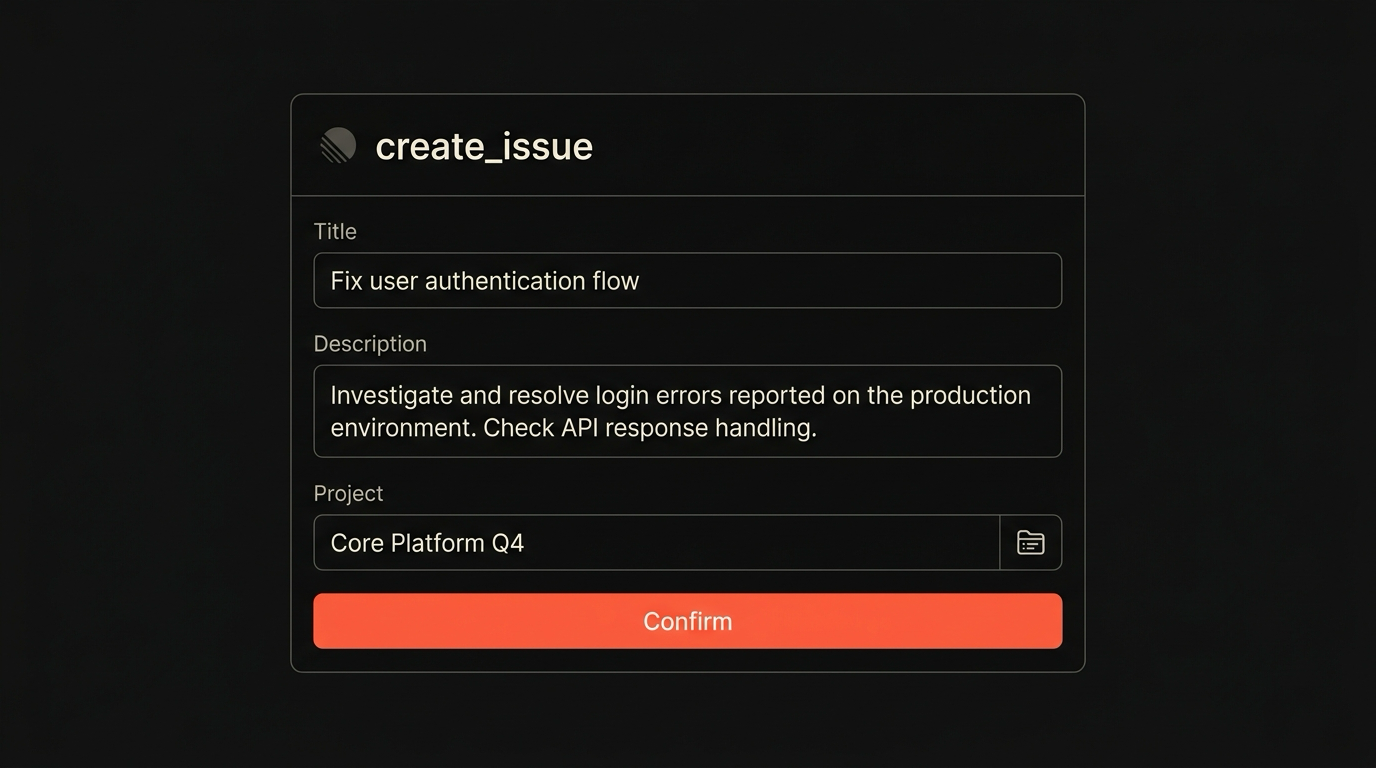
The side panel pauses. A permission prompt appears. It says: “Allow linear.create_issue on linear.app for this conversation?” Below the prompt, a preview of the tool call: the title the agent generated (“Tune Postgres connection pool: switch to transaction pooling, raise pool size to 40”), the description (the edited synthesis from stage 3, with links to all four sources), the project (“Database”), the priority (“Medium”), the assignee (the user’s Linear handle).
The user reads the preview. The title is good. The description is the comparison they edited. The project and priority are correct. They click “Allow for this conversation”.
The tool call runs. The MCP server returns a Linear issue ID and URL. The side panel shows the URL as a link. The user clicks it. Linear opens in a new tab. The issue is there, with the right title, the right description, the right project, the right priority, the right assignee.
The permission grant is scoped to the conversation. The next time the user asks the side panel to file a Linear ticket in a different conversation, the prompt re-appears. This is not friction theater. It is a deliberate boundary. A grant for one workflow is not a grant for the next one. The tool calling post covers the broader pattern.
Stage 5: verify and commit
Section titled “Stage 5: verify and commit”The agent reports the issue created. The user verifies in three places.
First, the link in the side panel. Click, see the issue, confirm it matches the preview. This is the fast check, and it catches the common case: the tool call ran, the result is real.
Second, the audit log. Settings, audit log, filter to the current conversation. Five rows: page context grant, page context reads, tab awareness grant, tab reads, linear.create_issue grant, linear.create_issue call with input shape and result. Every action the agent took is in a row. Every grant the user gave is in a row. Nothing else happened during the workflow.
Third, the Linear ticket itself, in the Linear UI. The audit log says the call ran. The link says the result has an ID. The Linear UI confirms the ticket has the content the user expected, in the project they expected, with the assignee they expected. Three checks that take twenty seconds and that catch the failure modes that matter.
The user closes the four research tabs. They close the side panel. The grants from this conversation drop. If the same user starts the same workflow tomorrow, the prompts come back. This is the right default. A grant earned on Tuesday should not silently authorize a different action on Wednesday.
The workflow that took thirty to ninety minutes manually took the user about four minutes of their attention, with the agent doing most of the seam work between reading and writing. The seam is what closed.
What to do when a step fails
Section titled “What to do when a step fails”Five stages, five places the workflow can break. We have hit each one in real use. Here is what happens.
The model returns a wrong summary. The side panel shows the summary in editable form. The user catches the error in the panel before the next stage runs. We do not auto-chain stages. The user has to confirm each handoff. This sounds slow and is not, because the alternative is finding the error in the Linear ticket after the fact and editing in two places.
The model invents a citation. Tab awareness shows the URL and title for every source the agent claims. If the agent attributes a quote to a tab the user did not open, the citation will not have a link, and the user notices. If the agent quotes a real tab inaccurately, the user spots it on the read-back. The agent is not infallible. The workflow assumes it is not.
The MCP server is misconfigured. The tool call fails with an error from the server. The side panel shows the error verbatim. The user fixes the configuration in settings, retries. The original synthesis from stage 3 is still in the conversation, so the retry does not lose work.
The user typed the wrong project. The Linear ticket is created in the wrong place. The user opens Linear, moves the ticket. This is a Linear UI workflow, not an agent workflow. We do not try to undo the tool call automatically, because automatic undo on side-effect tools is a worse idea than a manual fix. The audit log records the original call, which makes the manual fix easy to trace.
The agent ignores the user. Sometimes the model produces output that ignores a constraint the user gave. “Use the synthesis from earlier” gets a fresh re-read instead. The user re-prompts with the constraint stated more directly. If the model keeps ignoring, the user switches models. BYOK is what makes this practical. A user is not stuck with one vendor’s idea of obedience.
The pattern across the failure modes is the same. The agent is not the only actor. The user reviews, confirms, and commits at every stage boundary. The browser is not trying to remove the user from the loop. It is trying to remove the friction inside the loop. Those are different goals, and only the second one is honest.
For the deeper detail on how the side panel composes context across stages, the browser AI docs cover the architecture.
Download Maho
Section titled “Download Maho”Maho is available for macOS, Windows, and Linux. The workflow above runs end to end, with the permission model described and the audit log queryable. Download Maho.