
Spaces in Maho: when tab groups are not enough
Most days, you do one kind of work in your browser. You open the eight tabs you always open, you read, you reply, you close them. A tab group handles that. A Space would be overkill.
Other days, the day is not one shape. You have a research dive in one window, a Linear board open in another, a draft in a third, plus the personal stuff you keep coming back to. By 3pm the tab count has crossed forty and you cannot find anything. A tab group does not fix this. It just gives the chaos a colored bar.
Spaces are what you reach for when the day has more than one mode. This post is about when that line gets crossed, and when it does not.
The tab-group problem on a real workday
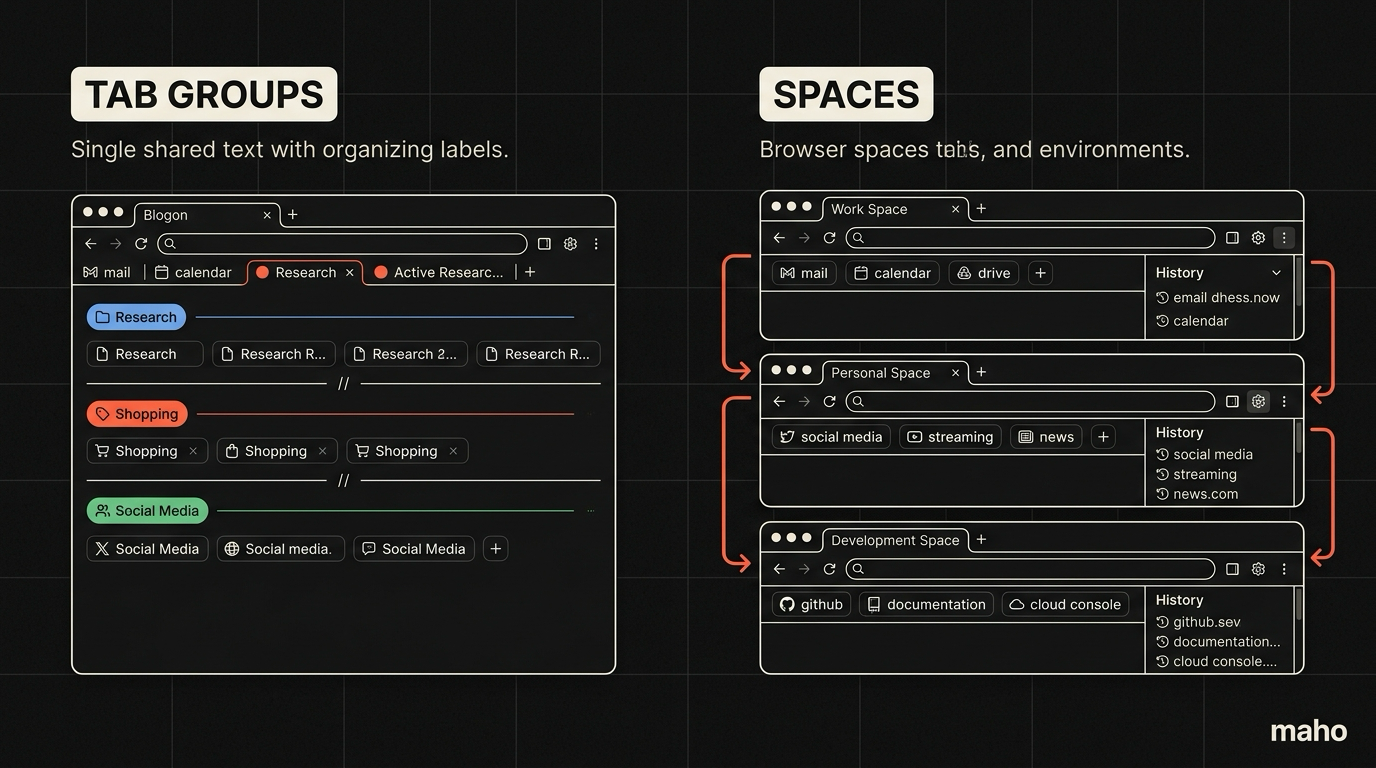
Section titled “The tab-group problem on a real workday”A tab group is a label and a color. The tabs sit in the same strip. They share the same window, the same history, the same downloads bar, the same active session. You can collapse a group to save horizontal space. That is the feature.
This works when your day is one context. Reading docs, opening a few links, closing them, moving on. A few colored bars across the top is enough.
The problem shows up when contexts compete. You are reading a Stripe API doc with eight tabs open, then a customer pings you in Slack about a different project, you click the link, and now there are eleven tabs. The Slack thread, the Linear ticket, the related PR, the staging URL. The Stripe tabs are still there. They are colored blue. The Slack tabs are not colored anything. You meant to give them a group but you were going to do it later.
By the third interrupt, the tab strip is twenty-six tabs wide and you cannot tell which group owns which tab without hovering. Cmd+1 jumps to the leftmost tab, which is no longer the one you started with. Cmd+T opens a tab in the same strip, polluting whichever context you happened to be in. Cmd+W closes a tab from a context you might still need.
Tab groups are a UI convention layered on a single context. When the day has more than one context, the convention starts costing you.
What a Space is, defined precisely
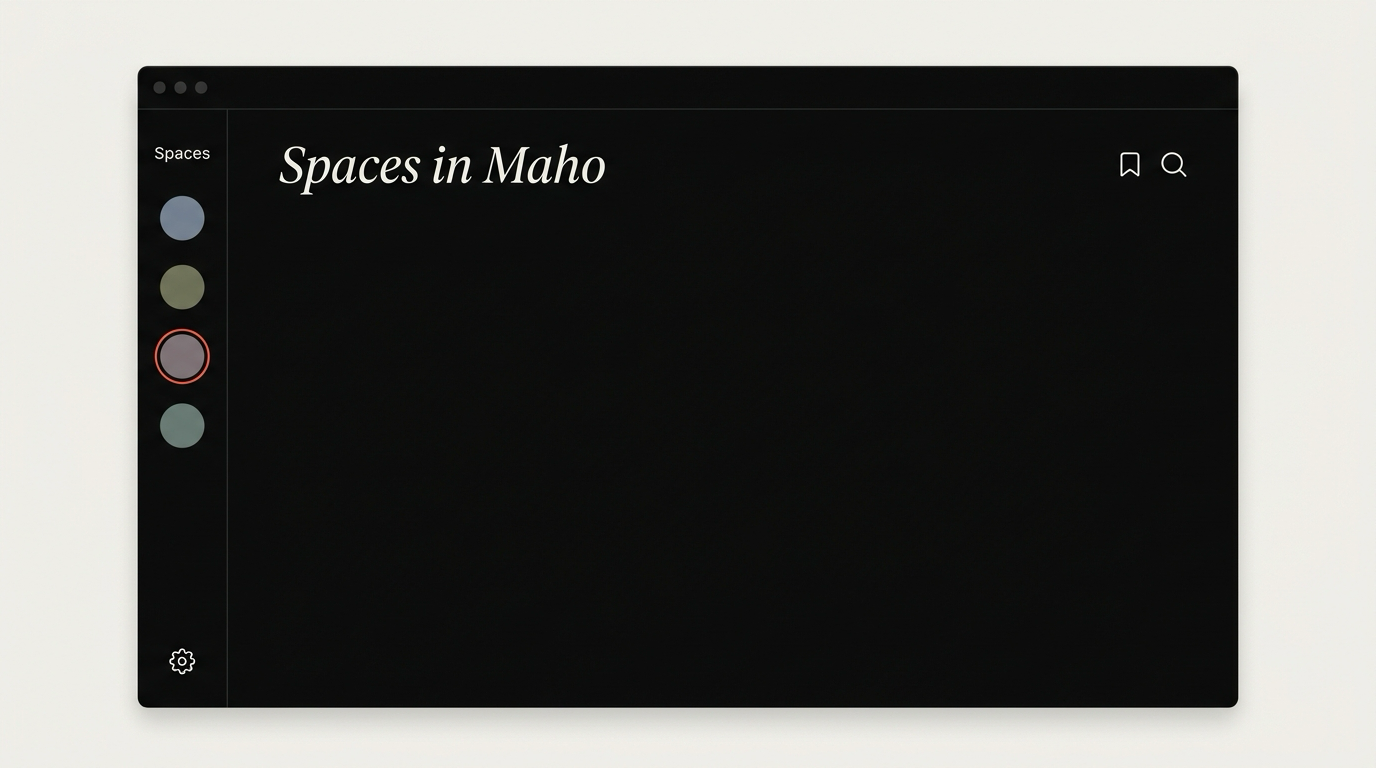
Section titled “What a Space is, defined precisely”A Space in Maho is a separate root context. Each Space owns:
- Its own list of tabs, in its own sidebar.
- Its own set of pinned tabs.
- Its own active tab and history of recently closed tabs.
- Its own AI side panel state, including the conversation thread and which provider is selected.
- Its own Boost and per-site setting overrides.
What a Space does not own:
- The browser profile. Cookies, logins, extensions, and Keychain entries are shared across Spaces by default. You can scope a Space to a separate profile if you want stricter isolation, but the default is shared so you do not log into Slack twice.
- The window. Spaces live inside a single window and you switch between them. They are not separate windows you alt-tab.
- The download history. Downloads are global to the profile, the way they always were.
A Space is heavier than a tab group and lighter than a profile. It is the unit of “what am I working on right now”. A tab group is the unit of “what is this collection of tabs about”. Two different things. The first is about your day. The second is about your tabs.
The Spaces documentation covers the implementation in detail. The thing to internalize is that switching Space switches the entire surface, not just a label.
Three workflows that need Spaces
Section titled “Three workflows that need Spaces”A workflow needs Spaces when it has its own tab set, its own AI thread, and its own focus context that other work should not pollute.
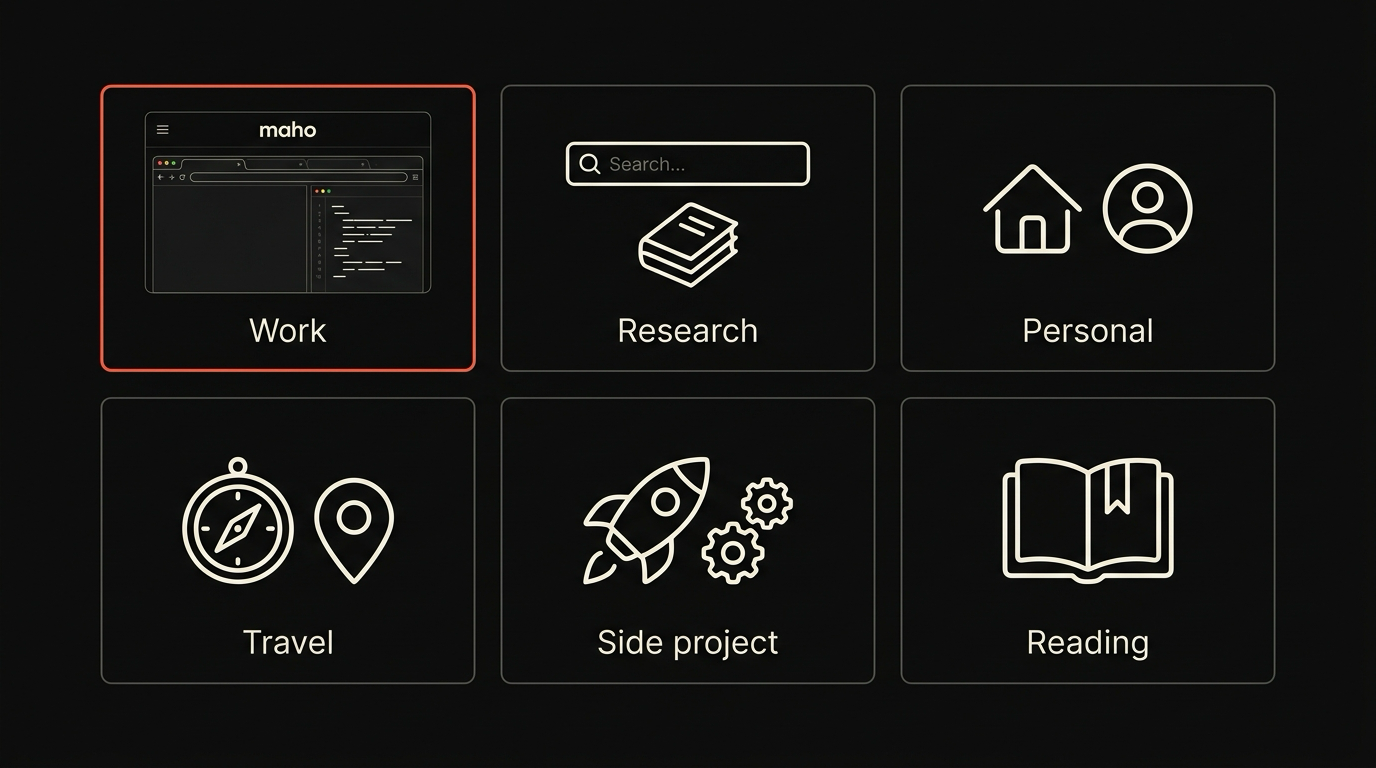
Client work, when you have more than one client. Each client has its own ticket tracker, its own staging environment, its own internal docs, and ideally its own AI conversation that knows nothing about the other client’s product. A tab group cannot keep client A’s Linear search out of client B’s autocomplete. A Space can. Switching Space at the start of a client meeting takes one keystroke and removes the cognitive overhead of “wait, which Linear is this”.
Research projects with a long shelf life. A research dive that lasts a week has thirty open sources, a running summary, a few tabs you keep coming back to, and an AI thread that has been accumulating context for days. You cannot keep that on the same tab strip as your daily inbox. A Space holds the whole pile, lets you walk away for two hours, and is exactly where you left it when you come back.
Personal life next to work life. The tabs you open during a focus block on a Friday afternoon are not the tabs you want open Monday morning. Personal banking, a flight booking, a long Reddit thread about a hobby. Putting that in its own Space means it is one keystroke away when you want it and zero pixels when you do not.
The pattern is the same across all three. The work has its own surface, its own state, and its own intent. Spaces match that shape.
Three workflows that do not
Section titled “Three workflows that do not”A Space is the wrong tool when the work is short, single-context, or already covered by something simpler.
A one-off task that fits in a single sitting. You are pricing a new vendor. You open six tabs, compare them, pick one, close them all. A tab group is enough. Setting up a Space for a task that ends in twenty minutes is overhead.
A grouping that is really a bookmark folder. A list of articles you want to read this week is a reading list, not a Space. Bookmarks or a pinned tab to a read-it-later tool covers it. The signal is that you do not need the AI thread, you do not need the side panel state, you just need a list of URLs.
A context that lives in a different app. If your design files live in Figma and your decks live in Keynote, do not build a Space around them. The browser is one window in a larger workflow. A Space is for work that mostly happens in the browser. When most of the work happens elsewhere, do not pretend.
The honest test is “does this work earn its own AI thread”. If yes, it is a Space. If no, a tab group, a bookmark folder, or a pinned tab is the right tool.
Switching, archiving, restoring
Section titled “Switching, archiving, restoring”Switching a Space is one keystroke. Cmd+1 through Cmd+9 jumps to a Space by index. Cmd+K opens the command bar with Space-switching as the first option. The animation is short on purpose. The whole sidebar swaps. The tab title in the OS swaps. The AI panel swaps. By the time the keystroke is over you are inside the new context.
Archiving a Space puts it to sleep. The tabs unload from memory. The state stays on disk. The Space disappears from the active list and shows up in the archive pane. You can keep an archived Space for a year and not pay any RAM cost. When you restore it, the tabs reload one by one as you click them, the AI thread comes back with its history, and the Boosts and per-site settings come back with it.
Restoring is symmetric to archiving. One click. The Space rejoins the active list at the position you left it. There is no migration step, no re-login (unless your cookies expired), no warning about an old session.
The point of archiving is that you do not have to delete a Space when you stop using it. Most people accumulate ten or fifteen Spaces over a year. Three or four are active at any moment. The rest are archived, ready when you need them.
If you came from Arc, the Maho vs Arc post covers what transfers and what you rebuild. Spaces themselves do not have a public export from Arc, but the muscle memory carries over.
Download Maho
Section titled “Download Maho”Maho is available for macOS, Windows, and Linux. Spaces are included, not a paid add-on. Download Maho.