
LM Studio plus Maho: a fully local AI panel on macOS
LM Studio is the second BYOK target many users reach for after Ollama, and the one some users reach for first. The reasons differ. The setup differs slightly. The Maho wiring is the same shape with a different port number. This post is the short path from a clean Mac to an AI panel running entirely against an LM Studio server.
Tested on macOS 14 and 15, Apple Silicon. Intel Macs work but the model choices below are slower.
Why LM Studio (and not just Ollama)
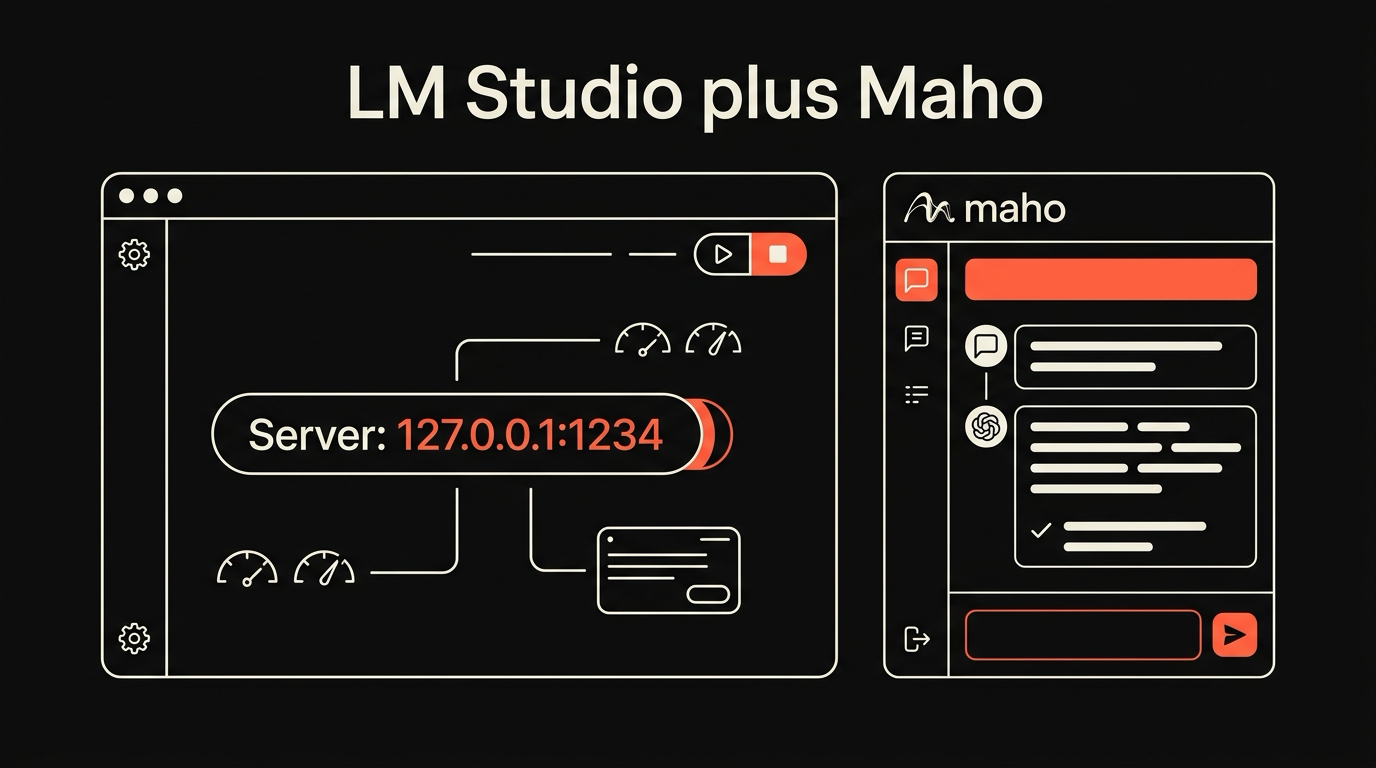
Section titled “Why LM Studio (and not just Ollama)”LM Studio ships a desktop app for managing model files, an inference engine, and an OpenAI-compatible HTTP server in the same binary. Ollama gives you a command-line server with a curated catalog. The two cover overlapping use cases. LM Studio wins when you want a GUI for browsing GGUF models, swapping quantization on a slider, and watching per-token throughput in a panel rather than a log. Ollama wins when you want a server you can brew install and forget about. Maho supports both because the choice is yours, and we do not want to be in it.
If you already have Ollama set up, the step-by-step Ollama post is the parallel walkthrough. The two providers can coexist; you can flip between them in the panel with the dropdown.
Setup: model, server, port
Section titled “Setup: model, server, port”Install LM Studio from lmstudio.ai. It is a single dmg on macOS, drag-and-drop into Applications. The first launch walks you through the model browser.
Pick a model. The walkthrough below uses Llama 3.1 8B Instruct at Q4_K_M quantization, around 4.9 GB on disk. It fits comfortably on a 16 GB Mac. If you have 32 GB or more, Llama 3.1 70B Instruct at the same quantization is the better choice for browsing tasks; expect 30 to 40 GB of disk and a slower first token. Smaller and faster: Phi-3.5 Mini at Q4_K_M, around 2.3 GB.
Click the download icon next to the model. Wait for it to finish.
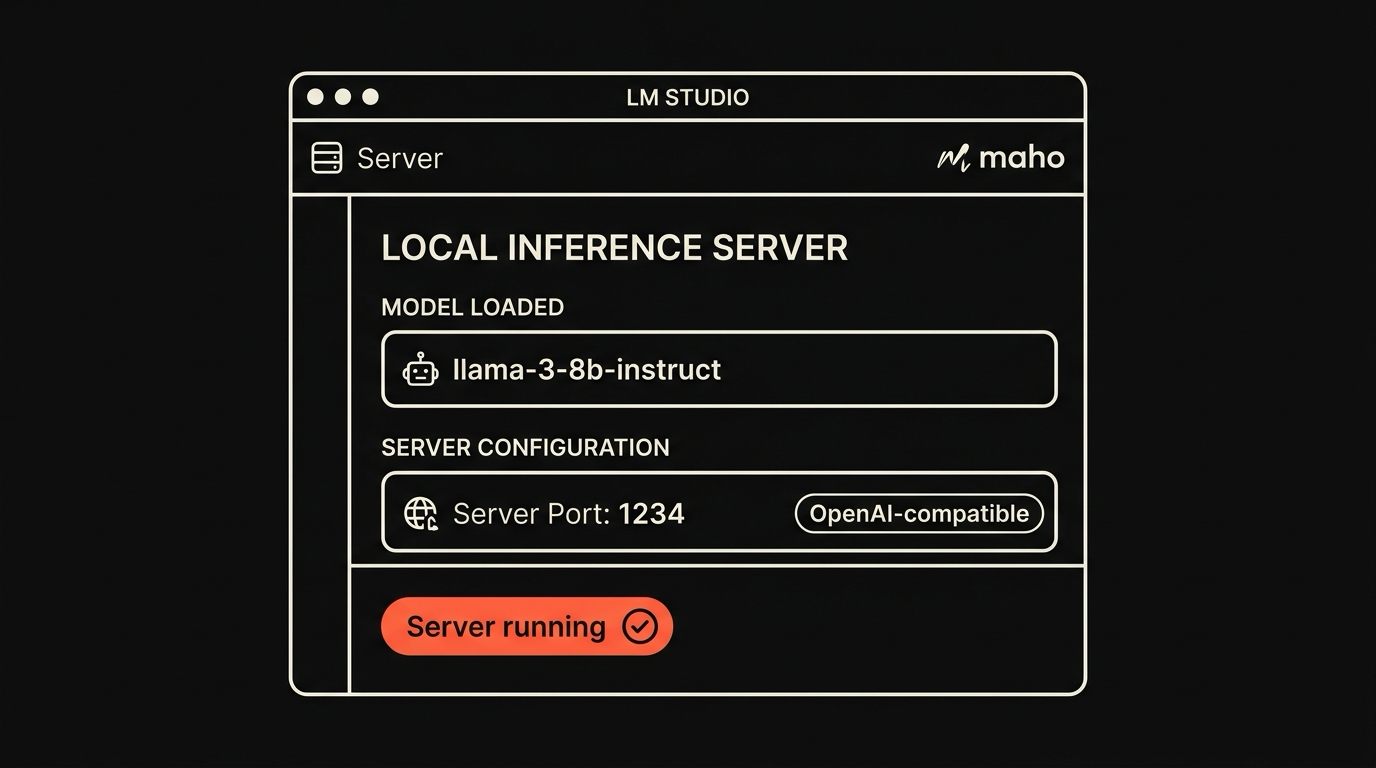
Open the Developer tab. The OpenAI-compatible server is the second item in the sidebar. The settings you care about:
- Server port: defaults to
1234. Leave it. - Server enabled: toggle on.
- Auto-start when LM Studio launches: optional, recommended.
- Loaded model: pick the one you downloaded.
Press Start Server. The status panel shows Server running on http://127.0.0.1:1234.
Confirm from a terminal:
curl http://127.0.0.1:1234/v1/modelsThe response is JSON with a data array containing the model you loaded:
{ "object": "list", "data": [ { "id": "lmstudio-community/Meta-Llama-3.1-8B-Instruct-GGUF", "object": "model", "owned_by": "organization_owner" } ]}The id is the value Maho asks for in the next step. Copy it.
A second sanity check, end to end through the chat endpoint:
curl http://127.0.0.1:1234/v1/chat/completions \ -H "Content-Type: application/json" \ -d '{ "model": "lmstudio-community/Meta-Llama-3.1-8B-Instruct-GGUF", "messages": [{"role": "user", "content": "Say hi in five words."}] }'You should see a JSON response with a choices array and a short answer. If this works, the wire format Maho uses is working.
Wire it into Maho
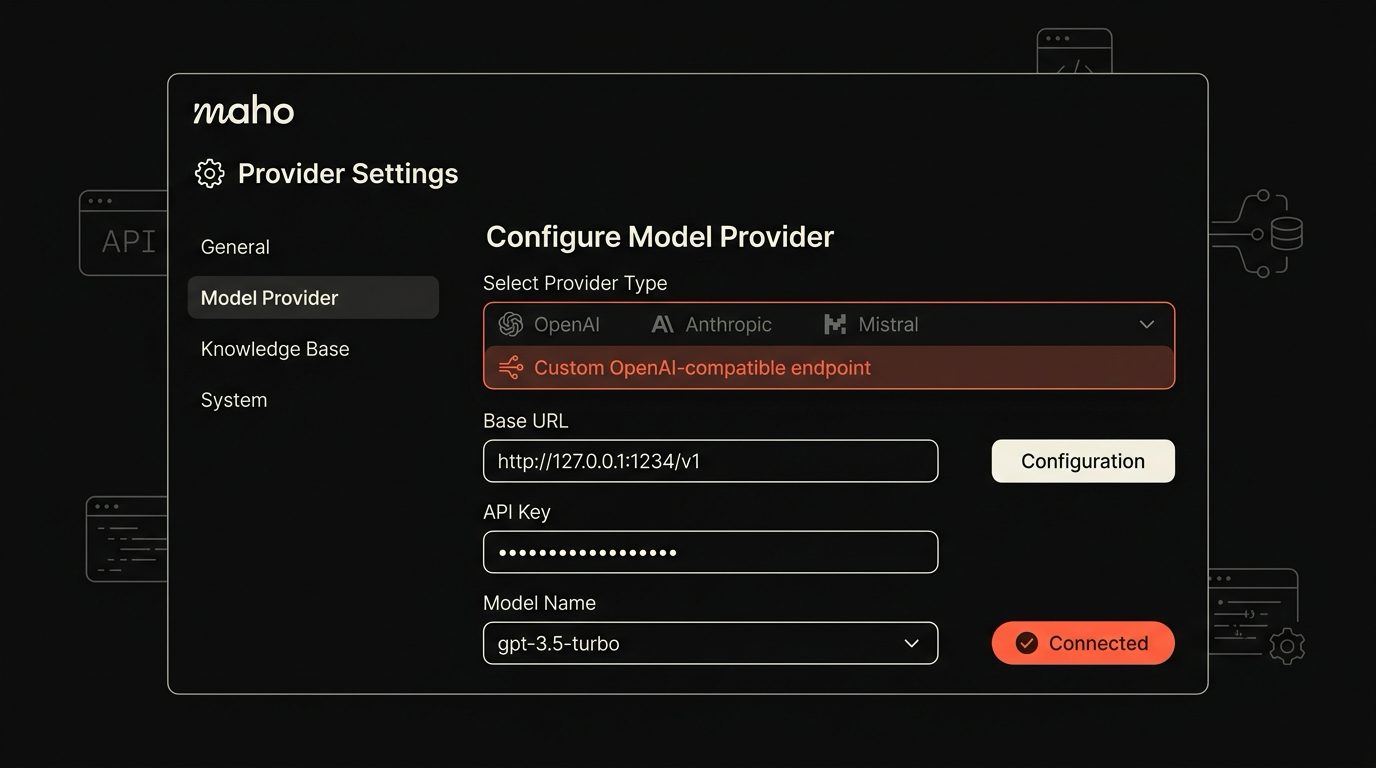
Section titled “Wire it into Maho”Open Maho. Toggle the AI panel with Cmd+Shift+L. Click the gear icon at the top of the panel and pick AI providers.
Click Add provider and choose LM Studio from the preset list. The form pre-fills:
- Base URL:
http://127.0.0.1:1234/v1 - Model: paste the
idfrom the curl output above. - API key: leave blank. Local servers do not require one. If LM Studio is configured to require a key, paste it here.
Save. The provider row shows a green dot when the probe succeeds. Set it as the default for the workspace from the dropdown at the top of the panel.
If you would rather use the Custom preset, fill in the same Base URL and Model. The two paths are identical under the hood; the LM Studio preset just skips two fields you do not need.
A round-trip test from the panel:
Summarize this page in three bullets.Tokens stream in within a second on a warm cache, longer on the first request after starting the server because the model loads into memory. If you hear the fans spin up, you are running locally.
Test cases that work locally
Section titled “Test cases that work locally”The following work without a cloud round-trip on the model sizes above:
- Page summarization. Open a long article, toggle page context on, ask for the summary. Eight-billion-parameter models give serviceable summaries on factual pages, weaker summaries on argument-heavy pieces.
- Page question and answer. Ask a specific question about the visible page. Answers are limited by the model’s context window, which we cover below.
- Rewriting. Paste a paragraph into the panel, ask for a tighter version. Local models do this well at 8B and up.
- Translation. Within the language pairs the model was trained on. Llama 3.1 covers the common ones; check the model card for specifics.
- Conversation that does not need tools. Anything that is text in, text out. The local server happily streams.
A useful sanity check: ask for the date or author of the page you are reading. If page context is wired correctly, the answer pulls from the rendered DOM. If the model hallucinates, the wiring is wrong, not the model.
Test cases that will not work locally
Section titled “Test cases that will not work locally”The following will not work, or will work badly, on the model sizes above:
- Tool calls. OpenAI-style function calling is not reliable on most local models in 2026. The model returns text that looks like a tool call but is not parseable by the host. Tool-heavy workflows in Maho should route to a cloud provider.
- Long-form synthesis across many tabs. Local models choke on the combined context of a Space with twelve open tabs. The browser surfaces the overflow, and the answer is partial. Use a cloud provider for cross-tab work or open fewer tabs.
- Code at the level of a senior engineer. 8B models give you scaffolding. They miss subtle bugs. Use a larger cloud model for code review.
- MCP server orchestration. The same problem as tool calls, plus the chained calls magnify the failure rate. Local for chat. Cloud for MCP.
The boundary is not “local bad, cloud good”. The boundary is what your hardware and your model can do with the prompts you actually have. Most of us will run two providers, the local one for routine summarization and rewriting, the cloud one for the work that needs a bigger model.
Notes on context length
Section titled “Notes on context length”LM Studio exposes the context length the loaded model supports. Llama 3.1 8B Instruct ships with 128k context in theory. In practice, the longer the context, the more memory the inference engine needs and the slower each token becomes.
Two practical numbers to keep in mind:
- The window LM Studio honors is set on the model load screen. Default is 4096 or 8192 tokens depending on the build. Raise it explicitly if you want longer page summaries; expect higher RAM use and slower throughput.
- The window Maho sends is capped at the smaller of the model’s reported context and a configurable ceiling. The ceiling is 32k tokens by default for local providers, so a long article roughly fits and a Space full of long tabs roughly does not.
If the panel reports “context overflow, summarizing in segments”, the prompt was longer than the window. Maho falls back to a chunk-and-summarize loop. The result is usable, the latency is higher, and the answer drifts because the model never sees the whole text at once. Avoid this on local: ask narrower questions or close tabs.
For deeper coverage of how the panel routes prompts and which provider gets which job, see browser AI.
Download Maho
Section titled “Download Maho”Maho’s BYOK panel includes the LM Studio preset and the Ollama preset. Download Maho.