
BYOK with Ollama: connect a local model to Maho in five steps
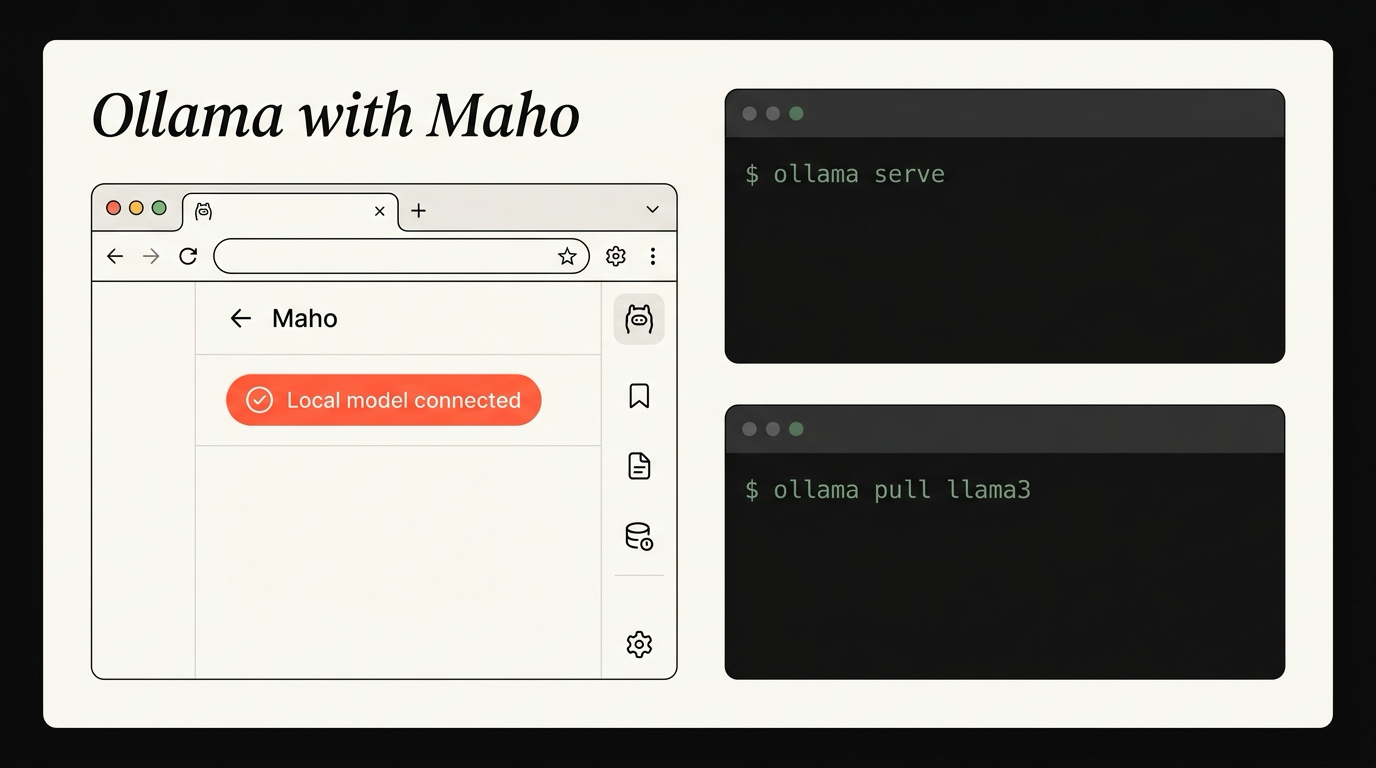
This is the short path from “I have Ollama installed nowhere” to “Maho’s AI panel runs entirely on my Mac”. Five steps. Real commands. A short troubleshooting section at the bottom for the things that actually go wrong.
Tested on macOS 14 and 15, Apple Silicon. Intel Macs work but the model choices below are slower. Linux and Windows users can follow along; only the install step changes.
Prerequisites
Section titled “Prerequisites”You need three things before you start:
- A Mac with at least 16 GB of RAM. 8 GB technically works for the smallest models, but you will be paging.
- Homebrew installed. If you do not have it, see brew.sh.
- Maho 1.0.0 or later. Download Maho.
The walkthrough uses llama3:8b because it is the smallest model that gives reasonable answers for browsing tasks. Swap in any other Ollama model later by name.
Step 1: install Ollama and pull a model
Section titled “Step 1: install Ollama and pull a model”Install Ollama, start the background server, and pull a model.
brew install ollamaollama serve &ollama pull llama3:8bThe first command installs the binary. The second starts the local model server in the background; it listens on http://localhost:11434 by default. The third downloads the model weights, which is around 4.7 GB for llama3:8b. The pull takes a few minutes on a normal connection.
If you want a different model, browse the catalog at ollama.com/library. Smaller options like phi3:mini (2.3 GB) load faster and answer faster but with rougher quality. Larger options like llama3:70b give better answers but need a Mac with 64 GB of RAM to be tolerable.
Confirm the server is running and the model is pulled:
ollama listYou should see llama3:8b in the table with a recent modified time. If ollama serve exited because something else was using port 11434, stop the other process or run Ollama with a custom OLLAMA_HOST and remember the port.
Step 2: confirm the OpenAI-compatible endpoint
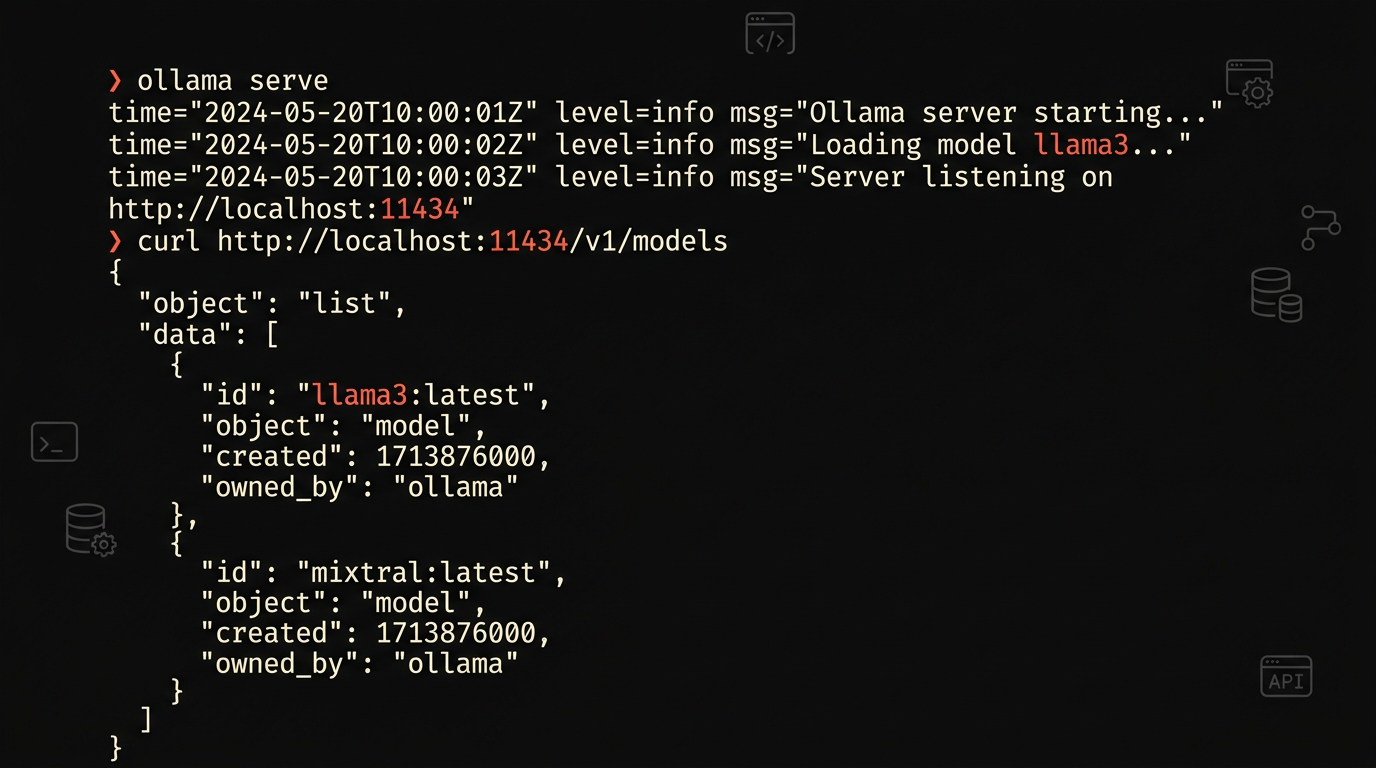
Section titled “Step 2: confirm the OpenAI-compatible endpoint”Ollama exposes an OpenAI-compatible API at /v1. Maho talks to it through that interface, not the native Ollama format. Confirm it is up:
curl http://localhost:11434/v1/modelsThe response is JSON with a data array that includes the model you just pulled:
{ "object": "list", "data": [ { "id": "llama3:8b", "object": "model", "created": 1721000000, "owned_by": "library" } ]}If you get a connection-refused error, the server is not running. Run ollama serve again and watch its output for clues.
A second sanity check, end to end through the OpenAI-compatible chat endpoint:
curl http://localhost:11434/v1/chat/completions \ -H "Content-Type: application/json" \ -d '{ "model": "llama3:8b", "messages": [{"role": "user", "content": "Say hi in five words."}] }'You should see a JSON response with a choices array and a short answer. If this works, the wire format Maho uses is working. The browser is the next layer up.
Step 3: add the provider in Maho
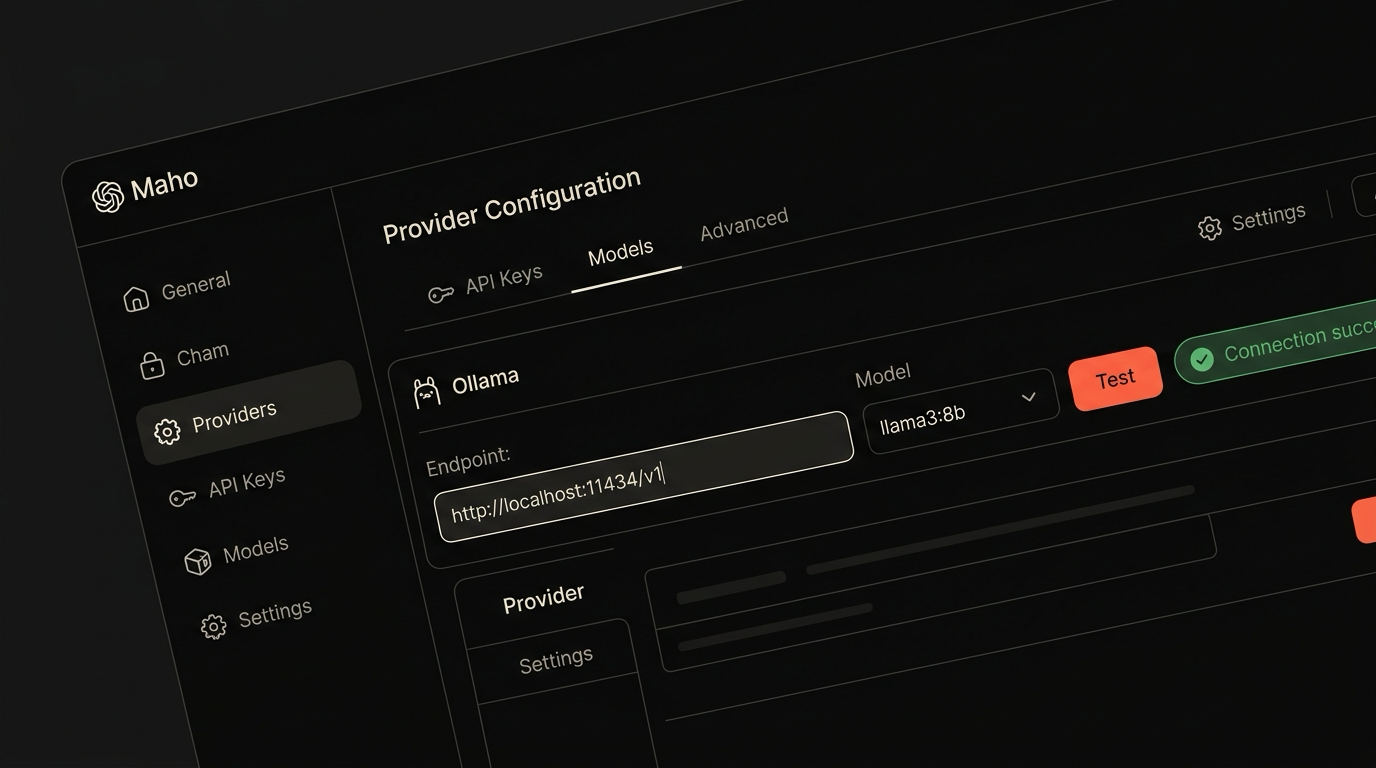
Section titled “Step 3: add the provider in Maho”Open Maho. The AI panel lives on the right side; toggle it with Cmd+Shift+L. Click the gear icon at the top of the panel to open Settings, then go to AI providers.
Click Add provider and pick Ollama from the list. The form pre-fills with sane defaults:
- Base URL:
http://localhost:11434/v1 - Model:
llama3:8b - API key: blank (a local server does not need one)
Save. The new provider should show up in the list with a green dot if Maho can reach the endpoint, and a red dot if it cannot. The dot is just a GET /v1/models probe; if it is red and your curl from Step 2 worked, restart the panel from the gear menu and check again.
If you would rather use Custom instead of the Ollama preset, fill in the same Base URL and Model. The two paths are identical under the hood. The preset just skips a couple of fields you do not need to fill in.
Step 4: verify with the side panel
Section titled “Step 4: verify with the side panel”Mark the new Ollama provider as the default for the workspace. The dropdown is at the top of the panel.
Open a real page, anything with text, and ask the panel to summarize it:
Summarize this page in three bullet points.You should see tokens stream into the panel within a second or two. The first request is slower because Ollama loads the model weights into memory. Subsequent requests are faster because the model stays resident until you stop the server.
A second test, with page context off:
What is the capital of France?This is the boring smoke test. If the answer is right, the round trip works. If the answer is gibberish, you probably picked a model that is too small. Switch to llama3:8b if you started with phi3:mini and try again.
Step 5: confirm no outbound calls
Section titled “Step 5: confirm no outbound calls”This is the step that matters. The point of a local model is that nothing leaves the machine. There are two easy ways to confirm.
The unplug test. Turn off Wi-Fi. Disconnect Ethernet. Ask the panel a question. If you get an answer, the prompt did not leave the machine. If you get a network error, you are not actually on the local provider; check the dropdown again.
The packet test. Open Activity Monitor or run lsof while you ask a question:
lsof -i -P -n | grep -i maho | grep ESTABLISHEDYou should see a connection to 127.0.0.1:11434. You should not see a connection to any cloud AI hostname like api.openai.com or api.anthropic.com. If you do, double-check that the workspace default provider is Ollama and that no other provider is configured as a fallback.
For a longer-running watch, point Little Snitch at the browser and let it log every outbound connection during a panel session. The only AI-related destination should be 127.0.0.1 or localhost.
Troubleshooting
Section titled “Troubleshooting”A few things go wrong often enough to be worth listing.
ollama serve fails with “address already in use”. Another process is using port 11434, often a previous ollama serve that did not exit cleanly. Find it with lsof -i :11434 and kill it, or set OLLAMA_HOST=127.0.0.1:11435 and update the Base URL in Maho to match.
Maho shows the provider dot as red even though curl works. Quit Maho and reopen. The probe runs at panel start. If it still fails, check whether macOS firewall is blocking localhost; the relevant setting is System Settings > Network > Firewall > Options.
Tokens take 30+ seconds to start streaming. First request after a cold server. Subsequent requests are faster. If every request is slow, the model is too large for your RAM and macOS is paging. Drop to phi3:mini or llama3:8b.
Tool calls do not work. Most local models in 2026 do not support OpenAI-style function calling reliably. Stick to chat and summarize tasks on local. Use a cloud provider for tool-heavy workflows. The setup for that is in the BYOK architecture post and the wider walkthrough lives in browser AI.
Download Maho
Section titled “Download Maho”Maho’s BYOK support includes the Ollama preset. Download Maho.