
Why we put browser AI history in SQLite
Browser AI sidebars produce a long tail of valuable data. The prompts you typed, the pages they referenced, the tools that got called, the answers that came back. That history is sometimes more useful than the conversations that produced it. You search it. You audit it. You grep it for the cURL command you wrote three weeks ago.
The default in 2026 is to keep that history on someone else’s server. We made the boring choice instead. Prompt history in Maho lives in a local SQLite database. This post is why, and what you can do with it.
The default in 2026 is “send it to us”
Section titled “The default in 2026 is “send it to us””Most AI products treat conversation history as a server-side concept. ChatGPT, Claude, every hosted chat product. Your messages live in a vendor database. The vendor’s account system is what gates access to them. Search and export are features the vendor decides to add.
That model has real upsides. The data is replicated, backed up, and available from any device. The downsides are the ones we keep coming back to. The vendor sees everything. The retention window is whatever the vendor decides. Export is a feature, not a guarantee. If the account is suspended or the company changes hands, the history goes with it.
For a browser, that posture is wrong twice. Wrong once because of the privacy posture we wrote about in BYOK in the browser. Wrong twice because a browser is the desktop app where local-first storage is the cheap and obvious path. We have a process running on your machine that already manages bookmarks, tabs, history, and cookies in local stores. The AI history can sit beside them.
So the question is not whether to store it locally. The question is in what shape.
The three alternatives we considered
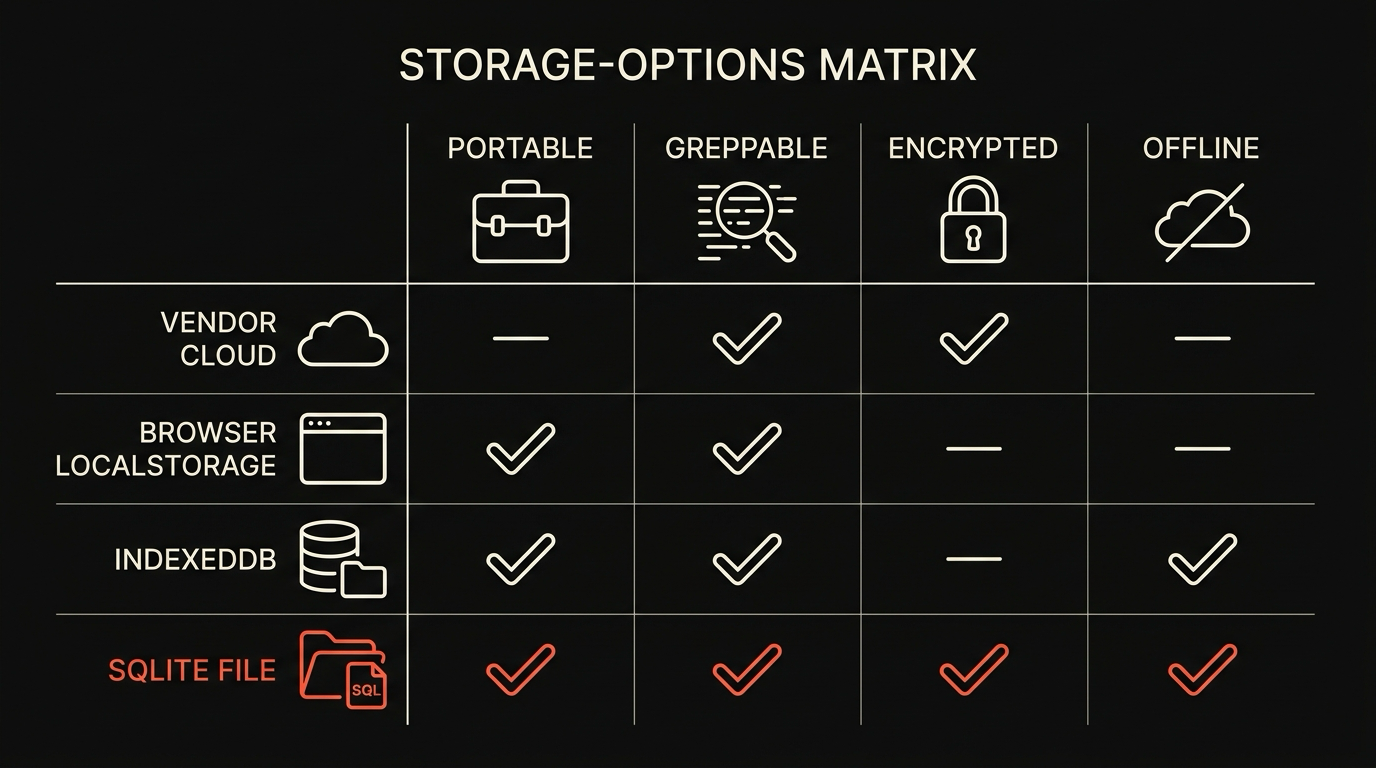
Section titled “The three alternatives we considered”Before SQLite, we ran through three other options. Each one looked appealing for a few hours.
Vendor cloud (whichever provider you use). OpenAI, Anthropic, and most providers will store history if you ask them to. The integration cost is low: a flag in the request, a fetch call to read it back. The cost on us is also low. We did not pick it because the privacy posture would unravel. The whole point of BYOK is that prompts leave your machine on a path you chose. Storing the conversation back on the provider doubles the surface area you have to trust. It also means your history is split across providers as soon as you switch from OpenAI to a local Ollama, with no migration story.
IndexedDB. Chromium ships with IndexedDB and we are a Chromium fork. The web platform’s storage primitive is right there. We rejected it because IndexedDB is awkward for the access patterns we wanted. Full-text search is a hand-rolled index. Concurrent reads from native code (the panel runs in a process that is not the renderer) require a bridge. Backup is a directory of opaque LevelDB files. Power-loss durability is fine but not as well understood as SQLite’s. The list of small problems added up.
JSON files in Application Support. A folder of *.json, one per conversation, sorted by date. This is the dumbest option and we genuinely considered it for half a day. The appeal is that you can cat and grep your history with no tooling. The disqualifying problem is search at scale. Once you have eight hundred conversations spread across two thousand files, scanning them on every query gets slow. You also lose transactional writes. A crash in the middle of saving a tool call leaves half-written JSON that is no longer parseable.
Each option had a specific failure mode. SQLite did not have one.
Why SQLite won
Section titled “Why SQLite won”SQLite is the boring, correct answer. We picked it for four reasons that compound.
Durability. SQLite has the best track record of any embedded database we know of. Atomic commits, crash safety, and a write-ahead log that survives power loss. Conversations get appended in the middle of network failures, panel crashes, and forced quits. None of those leave the file in a broken state. The same code that runs in iOS Mail and Firefox bookmarks runs in our prompt store.
FTS5. SQLite ships with a full-text search extension that indexes columns of text and lets you query them with MATCH. We use it to make every prompt and tool result searchable from the panel itself, with phrase search, prefix search, and ranking. The query is a few lines of SQL. It is fast on tens of thousands of conversations on a laptop SSD.
It is jq-able through sqlite-utils. SQLite is a single file with a documented format and dozens of tools that read it. The one we lean on most is Simon Willison’s sqlite-utils, which makes the whole database scriptable from the command line. You can dump rows as JSON, run aggregates, export to CSV, build views, and chain it with jq for any shape transformation you want. The history is yours and the tools to manipulate it are off the shelf.
An encrypted-at-rest path that already exists. SQLite has a binary-compatible encryption layer (SQLCipher) that we can flip on with a build flag. The file becomes opaque without the key. The key lives in the macOS Keychain, gated by your user session. We document the toggle in the security settings.
The combination is hard to match with any of the alternatives. Durability, search, scripting, optional encryption, all in one file you can copy.
The schema, in plain terms
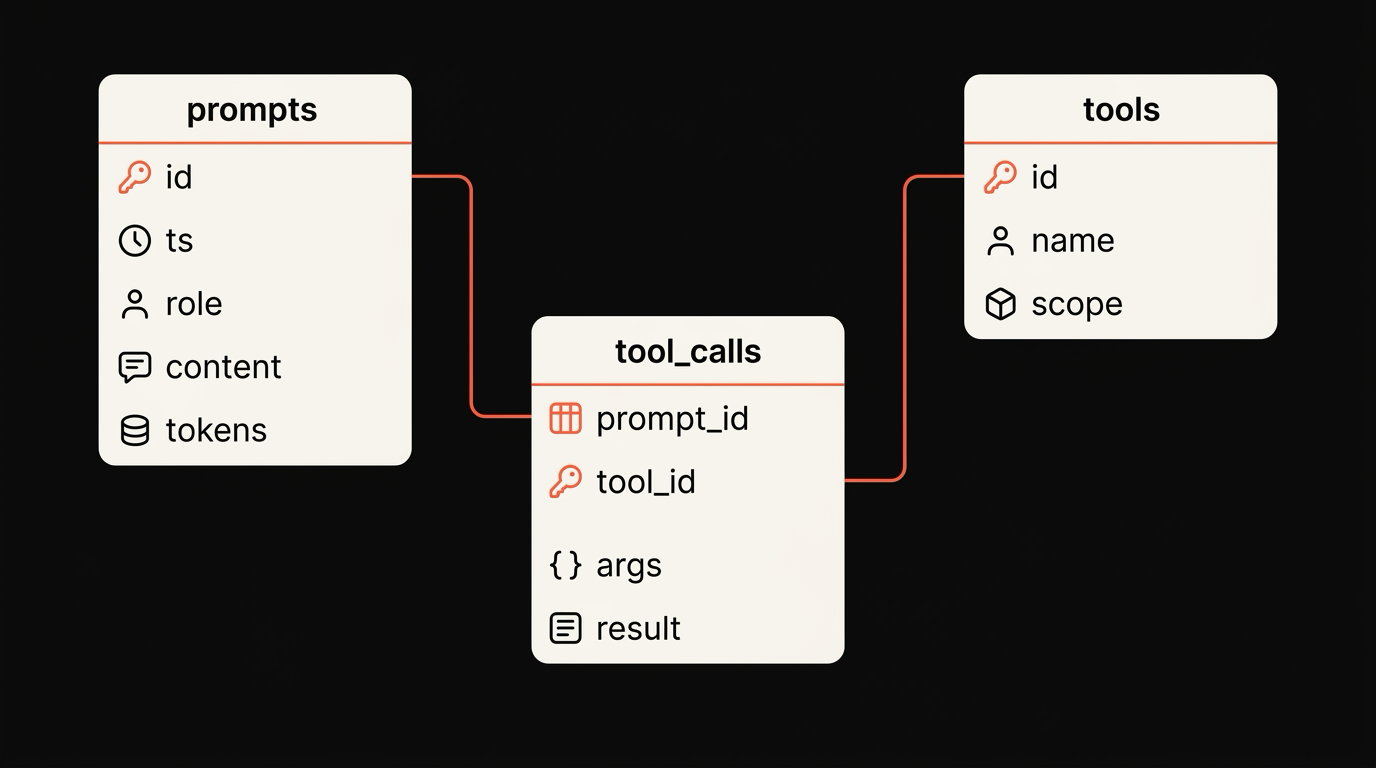
Section titled “The schema, in plain terms”The history database has three tables. They are deliberately small.
CREATE TABLE prompts (  id      INTEGER PRIMARY KEY,  ts      INTEGER NOT NULL,        -- unix epoch ms  role    TEXT    NOT NULL,        -- 'user' | 'assistant' | 'system'  content TEXT    NOT NULL,  tokens  INTEGER);
CREATE TABLE tools (  id    INTEGER PRIMARY KEY,  name  TEXT NOT NULL UNIQUE,      -- e.g. 'fetch_url'  scope TEXT NOT NULL              -- e.g. 'origin:example.com');
CREATE TABLE tool_calls (  prompt_id INTEGER NOT NULL,  tool_id   INTEGER NOT NULL,  args      TEXT,                  -- JSON  result    TEXT,                  -- JSON  FOREIGN KEY (prompt_id) REFERENCES prompts(id),  FOREIGN KEY (tool_id)   REFERENCES tools(id));
prompts is the conversation log. Every message, every role, ordered by timestamp. The token count is denormalized so we can answer “how many tokens this month” without re-tokenizing.
tools is the registry of tools the panel knows about, with their permission scope. The scope is the same shape we use to gate per-origin grants. A tool can be global, origin:example.com, or session-only.
tool_calls connects prompts to the tools they triggered, with the JSON args and the JSON result. This is the audit log. If the assistant called fetch_url on a page, the row is there with the URL, the response code, and the headers we kept.
There is also a virtual table for FTS5 that mirrors prompts.content, populated by triggers, and a small meta table for schema version. That is the whole shape. No surprises.
What you can do with it directly
Section titled “What you can do with it directly”The database lives at ~/Library/Application Support/Maho/Default/ai_history.sqlite. You do not need Maho running to read it. You do not need our blessing.
A few examples that turn a chat history into a useful artifact.
Find a prompt by phrase.
sqlite3 ai_history.sqlite \ "SELECT ts, content FROM prompts \ WHERE id IN (SELECT rowid FROM prompts_fts WHERE content MATCH 'rust async cancel') \ ORDER BY ts DESC LIMIT 10;"Count tokens this month.
sqlite3 ai_history.sqlite \ "SELECT SUM(tokens) FROM prompts \ WHERE ts > strftime('%s', 'now', 'start of month') * 1000;"Export a single conversation to JSON.
sqlite-utils ai_history.sqlite \ "SELECT * FROM prompts WHERE ts BETWEEN ? AND ? ORDER BY ts" \ -p 1693440000000 -p 1693526400000 \ > conversation.jsonSee every URL the panel ever fetched on your behalf.
sqlite3 ai_history.sqlite \ "SELECT json_extract(args, '\$.url'), result \ FROM tool_calls \ JOIN tools ON tools.id = tool_calls.tool_id \ WHERE tools.name = 'fetch_url';"These are not party tricks. They are the kind of thing you reach for when a teammate asks how you arrived at a snippet, or when you are auditing what the agent did during a session you do not fully remember. The history is yours, in a format every Unix tool already speaks.
Backup, sync, encrypted-at-rest
Section titled “Backup, sync, encrypted-at-rest”A local database raises three reasonable questions. Backup, sync, encryption.
Backup. Time Machine catches the file along with everything else under Application Support. If you want a more portable backup, cp ai_history.sqlite ai_history.bak works while the panel is closed. With the panel open, sqlite3 ai_history.sqlite '.backup ai_history.bak' is the right command, because it takes a consistent snapshot through the SQLite API rather than a possibly torn raw copy.
Sync. The Maho sync relay carries tabs, history, and Spaces. AI history is opt-in for sync, off by default, because the privacy and size shapes are different. When you turn it on, the database is replicated through the same end-to-end encrypted relay we use for the rest of sync. The relay does not see plaintext. We documented that side of the architecture in the security page.
Encrypted-at-rest. The encryption toggle lives in Settings, Privacy, AI history. When you turn it on, the file is rewritten through SQLCipher with a key generated locally and stored in your Keychain. Subsequent reads go through the same path. If you copy the file off the machine without the key, it is opaque. We default the toggle off, because the file already lives in a per-user directory under macOS file permissions, and the cost of encryption is a small CPU hit on every query. We made it a one-click on for users who want the second layer.
The combined picture is the one we wanted from the start. A history that lives where you can read it, that survives a crash, that you can search with one SQL query, that backs up with one command, and that you can encrypt in place when you want to. SQLite is what got us all four.
Download Maho
Section titled “Download Maho”Maho is available now. The history database, schema, and FTS5 search are included. The architecture that surrounds it is in BYOK in the browser. Download Maho.